
Managing your website images can feel tedious. But when it's done right, it boosts accessibility, SEO, and your site's overall professionalism. If you've ever stared at the WordPress Media Library wondering what to type for "Alt Text" or "Title," you're not alone. We've all been there.
In this guide, I'll break down exactly what each image metadata field does in plain language, show you when and how to use each one, and share an AI workflow you can copy and use today to speed up your process. Whether you manage client sites or run your own, you'll walk away with a clear standard and a repeatable process.
And for those of you whose websites are not on WordPress, no worries! This guide will still help you create a system of your own to work wonders for your website images, whether your site is hand coded, Wix, Squarespace or some other Content Management System.
Why image SEO and accessibility matter
Planning image basics right pays off on two fronts: people and search. When your images are described clearly and sized correctly, visitors have a smoother experience and search engines better understand what your page is about.
Better accessibility. Visitors using screen readers understand your content. Proper alt text is also a requirement under WCAG (Web Content Accessibility Guidelines), and many accessibility laws reference it directly. Getting this right protects your business and your users.
Better SEO. Search engines understand your page topic and context. Google's own image SEO best practices specifically recommend descriptive alt text and meaningful file names. With visual search tools like Google Lens growing fast, well-described images are becoming more valuable every year.
Better workflow. A consistent system saves time and reduces errors. Whether you manage your own site or hand it off to a developer, a clear standard means fewer mistakes and faster updates.
These benefits tie directly into on-page SEO fundamentals that help your entire site perform better in search.
💡 If you need a structured way to manage your on-page SEO tasks (including image optimization), check out the Notion SEO Command Center. I built it from my own client workflow to keep every optimization step in one place.
WordPress image metadata: alt text, titles, captions, descriptions
If you’ve ever felt unsure about what belongs in Alt Text or whether a Caption helps or hurts, you’re not alone. Let’s get you a clear, professional standard that works for both accessibility and SEO, without the guesswork.
These principles apply across platforms, but we’ll reference WordPress terms so you can put this to work today.
Alt Text: Describe the image's purpose, not just pixels
Alt Text is a concise, accurate description of what a non‑sighted visitor should understand from the image in the context of where it appears on the page.
The accessibility impact is high. Screen readers announce Alt Text in place of the image. If an image is purely decorative, set empty alt (alt="") so screen readers skip it and users aren't burdened with noise.
The SEO impact is moderate and contextual. Alt Text helps search engines understand page topics, especially when you naturally reference the page's primary concept. Never keyword‑stuff. If the keyword fits a truthful description, include it once.
How to write it well:
- Be specific and succinct. Aim for one short sentence on most images. End with a period (full stop).
- Reflect the image's role on the page. A product photo gets different alt text than a decorative divider.
- Prefer meaning over minutiae. "Manager leading a small team huddle" beats "four people standing in an office."
- Never start with "image of" or "photo of." Screen readers already announce it as an image.
- Quick before-and-after examples:
- ❌
alt="image"→ ✅alt="Completed website redesign shown on laptop and mobile screens" - ❌
alt="photo of a woman"→ ✅alt="Business owner reviewing website analytics on a tablet" - ❌
alt="SEO WordPress alt text optimization image metadata"→ ✅alt="WordPress Media Library with alt text field filled in for a product photo"
- ❌
Title (Media Library): A searchable name for your future self
The Title is the image's internal name in the Media Library. Screen readers don't rely on it for meaning, so the accessibility impact is low. The direct SEO impact is also low, but the operational impact is strong: clean titles make bulk operations, search, and reuse much easier.
How to write it well:
- Use human‑readable, searchable conventions. Example: "manager-essentials-bundle-hero-2025.jpg" → Title: "Manager Essentials bundle hero 2025".
- Add distinguishing context when similar images exist, such as “v2,” “dark-bg,” or “cropped.”
Caption: Visible help when context isn't obvious
A Caption is optional, on‑page text that appears under the image for all users to see. The accessibility impact is medium: captions help everyone when the image needs context that surrounding text doesn't provide. The SEO impact is low to modest. Captions can reinforce page relevance, but they're not a ranking silver bullet.
When to use it:
- Use when the image communicates data, a quote, a source, or a non‑obvious takeaway.
- Skip when it repeats the nearby headline or body copy.
How to write it well:
- Add value in one short line. Think "what a scanning reader needs to know at a glance."
- Example: For a chart showing conversion rates, a strong caption might be "Email opt-in rates doubled after adding exit-intent popups (Q3 2025 data)."
Description: Usually leave it blank
The Description field is legacy text primarily used on attachment pages. In WordPress, every uploaded image automatically gets its own standalone URL called an "attachment page." These pages display just the image and its description, with little other content.
Why attachment pages matter: if left enabled, they create dozens (or hundreds) of thin, low-value pages on your site. Search engines may index them, which can dilute your site's overall quality signals. In some cases, an attachment page could even outrank the actual post you want visitors to find. Most SEO plugins (Yoast, Rank Math, AIOSEO) include an option to redirect attachment pages back to the parent post. If you manage your own site, make sure that redirect is enabled. If you work with a developer or a care plan provider, ask them to confirm it's handled.
The accessibility and SEO impact is low. Since most modern sites disable attachment pages, the Description field goes unused. Leave it empty and focus your effort on Alt Text, Title, and occasionally Caption. If you're on Squarespace or Wix, this field doesn't exist in the same way. See the cross-CMS comparison below for details.
Quick comparison
| Field | Primary Purpose | Accessibility Impact | SEO Impact | Use It? |
|---|---|---|---|---|
| Alt Text | Meaningful description aligned to page context | High | Moderate when contextual | Yes, or alt="" if decorative |
| Title (Library) | Searchable, operational naming | Low | Low (indirect workflow boost) | Yes, every time |
| Caption | Visible context when needed | Medium | Low to modest | Sparingly, when it adds value |
| Description | Attachment page text | Low | Low | Generally ignore |
Key takeaway: Alt Text and a clear Library Title are your always‑on standards. Use Captions only when they clarify meaning. Ignore Description on most modern sites.
For deeper on-page gains, learn how to use entities in your website copy for SEO. This pairs well with meaningful Alt Text and smart Captions to reinforce topical relevance without keyword stuffing.
Once your metadata is set, make sure the image files themselves are optimized for speed too. Faster load times contribute to better Core Web Vitals scores, and lazy loading is one more technique worth pairing with image compression.
💡 Pro tips for faster pages
Compress images before upload. Good options: WP Smush Pro or similar optimization plugins, Photoshop’s Export As with quality tuned ~60–80, ImageOptim on Mac (lossless or lossy), or a reputable online compressor.
Serve the right size. Export to the exact display dimensions when possible to avoid oversized files on the front end..
Before you upload: file names and image formats
Two steps before you ever open the Media Library will save you time and improve your results.
Name your files descriptively
Google uses file names as one clue for understanding image content. A clear name also makes your Media Library easier to search six months from now when you need to reuse an image.
- Use lowercase words separated by hyphens:
wordpress-media-library-alt-text-fields.webp - Avoid generic camera names:
IMG_4392.jpgorDSC_0017.pngtell search engines nothing and clutter your library. - Include context when it helps:
notion-seo-command-center-dashboard.webpis more useful than justdashboard.webp
Choose a modern image format
You may already be familiar with JPEG and PNG. They still work, but newer formats deliver better quality at smaller file sizes, which means faster pages and better Core Web Vitals scores.
- WebP is the current standard for web images. It produces files 25-35% smaller than JPEG at the same visual quality, and all modern browsers support it. If your WordPress site uses an optimization plugin like WP Smush Pro or ShortPixel, it can convert your uploads to WebP automatically.
- AVIF is the next generation. It compresses even further than WebP, but browser support is still catching up. Worth adopting if your hosting and CDN support it.
- When to stick with PNG: Use PNG for screenshots, logos, and images that need transparency. PNG preserves crisp edges and text that JPEG would blur.
💡 If choosing formats and compressing images feels like one more thing on your plate, that's exactly the kind of task a Website Care Plan handles for you. Image optimization, format conversion, and compression become part of your ongoing site maintenance, so you can focus on running your business.
How to add image metadata in WordPress (step by step)
Knowing what each field means is half the battle. Here's exactly where to fill them in.
From the Media Library
- Go to Media → Library in your WordPress dashboard.
- Click on the image you want to edit.
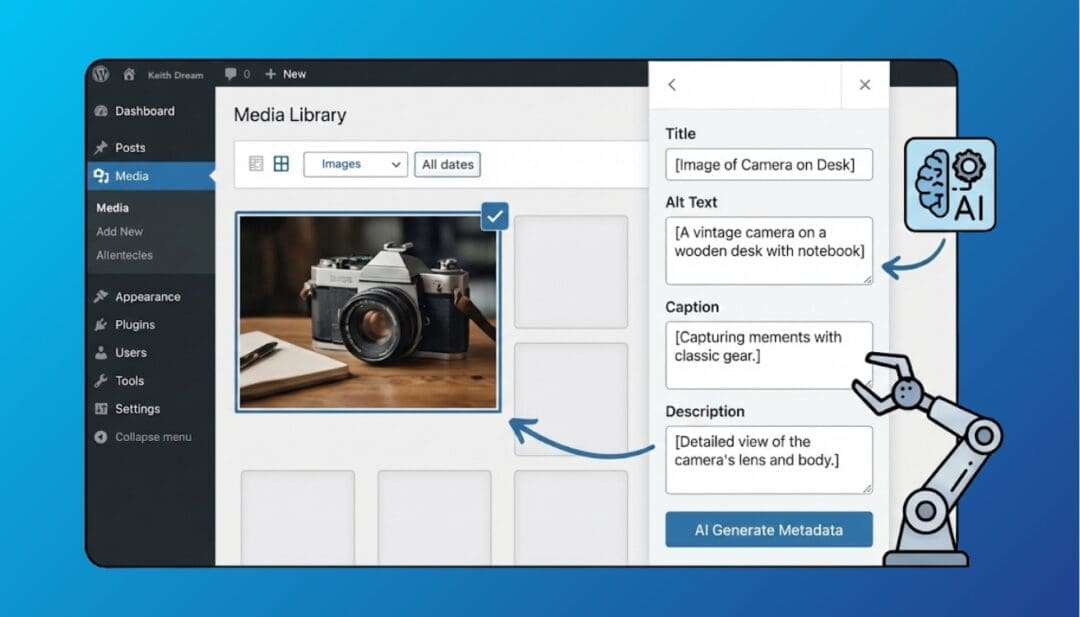
- In the Attachment Details panel on the right, you'll see four fields: Alt Text, Title, Caption, and Description.
- Fill in Alt Text first (most important). Then set a clean Title. Add a Caption only if it adds value. Leave Description blank.
- Changes save automatically.
From the Block Editor (while editing a post or page)
- Click on an Image block in your content.
- In the Block Settings sidebar (right side), find the Alt Text field under "Settings."
- Type your description. This overrides whatever Alt Text is saved in the Media Library for this specific use of the image.
- To add a Caption, click directly below the image where it says "Add caption."
Important: Editing Alt Text in the Media Library updates it for future uses of that image and for Featured Images. It does not retroactively update images already placed in posts. To fix those, edit the Alt Text directly on each post's Image block.
Common image metadata mistakes to avoid
These are the patterns I see most often when auditing client websites:
- Leaving Alt Text blank on every image. Screen readers skip these entirely, and search engines get no context. If the image adds meaning, describe it.
- Keyword-stuffing Alt Text. Writing "SEO WordPress alt text image optimization metadata guide" reads like spam to both users and Google. One natural mention of your page topic is plenty.
- Starting with "image of" or "photo of." Screen readers already announce it as an image, so the prefix is redundant noise.
- Using the same Alt Text for every image. Each image serves a different purpose on the page. Write for that specific context.
- Ignoring file names. Uploading
IMG_3847.jpgwastes a free SEO signal. Not to mention making it difficult to determine the purpose of the image. Rename before you upload. - Skipping metadata on Featured Images. Your Featured Image is often the first thing search engines and social media platforms see when they crawl or share your page. Give it proper Alt Text and a clean file name.
Not on WordPress? Here's how image metadata works across platforms
The principles above apply to every content management system, but the specific fields and where you find them differ.
Here's a side-by-side comparison of WordPress, Squarespace, and Wix so you know exactly what's available on your platform.
| Feature | WordPress | Squarespace | Wix |
|---|---|---|---|
| Centralized Media Library | Yes. Media Library stores all uploads with full metadata fields. | Yes. Asset Library stores all uploaded images and videos. Supports folders. | Yes. Media Manager stores all uploads (images, video, audio, docs). Supports folders. |
| Alt Text | Yes. Dedicated "Alternative Text" field in the Media Library and on insert. | Yes. Dedicated "Image Alt Text" field on image blocks (v7.1). In v7.0 gallery pages, the Image Title doubles as alt text. | Yes. "What's in the image? Tell Google" field for single images. Pro Gallery has a separate "Alt Text" field. For basic galleries, the Title doubles as alt text. |
| Title | Yes. Editable "Title" field in the Media Library, used internally for search and management. | Partial. File name is editable in the Asset Library. Image blocks don't have a separate Title metadata field. Gallery blocks support an "Image Title" field (v7.0). | Yes. Gallery images have a "Title" field. For single images, there is a "Tooltip" field. The title also serves as default alt text in galleries. |
| Caption | Yes. Dedicated "Caption" field in the Media Library. Displays below the image when inserted. | Partial. Gallery sections display a "Description" as a visible caption when the Captions toggle is on. In Fluid Engine (v7.1), use a separate text block adjacent to the image. | Partial. Gallery images have a "Description" field that can display as visible text. For single images, use a text element below the image. |
| Description | Yes. Dedicated "Description" field in the Media Library, used on attachment pages (usually disabled for SEO). | Limited. Gallery images have a "Description" field. If no alt text is added, the description becomes alt text. No centralized description field in the Asset Library. | No dedicated description metadata field. Gallery "Description" is visible text only, not hidden metadata. |
| Bulk Editing | Yes. Media Library supports bulk select and some bulk actions. | Limited. Asset Library supports folder organization, but no bulk alt text editing. AI-generated alt text available via SEO report tool (v7.1). | No. Bulk alt text editing is not currently supported. |
The table makes one thing clear: Alt Text is the only field that works the same way on every platform. Title as standalone metadata is mainly a WordPress feature, while Captions and Descriptions are handled differently (or not at all) depending on your CMS. No matter which platform you use, the principles in this guide still apply: write clear, contextual alt text, keep your media organized, and only add visible captions when they genuinely help the reader.
Adopt a smart image metadata system
Now that you know what each field does and why it matters, the next question is: how do you fill them in consistently without burning time on every single image? The answer is a repeatable system that gives you speed, quality, and confidence that every image meets your standard.
Why a system beats manual work
- Consistency at scale: Every image gets Alt Text, a clean Library Title, and a smart decision on Captions.
- Accessibility you can trust: Empty alt for decorative images, descriptive alt when meaning matters.
- SEO alignment without fluff: Natural, context‑aware language that reinforces the page topic.
- Team handoff: Clear structure anyone on your team can follow.
What the system does (in practice)
- Prompts you for page context before writing anything.
- Analyzes the image against that context.
- Outputs a complete package you can paste into WordPress: Library Title, two Alt Text options, Caption recommendation, and a file name.
Pro workflow tip
Batch your updates: drop all images on a staging page in Notion, run the AI for each with the same page context, and copy results into WordPress in one pass. Pair with compression via WP Smush Pro (plugin) or ImageOptim (app) so you don't ship oversized files.
Meet your AI assistant for image SEO and accessibility (WordPress Media Architect)
Keep a human in the loop
AI is a powerful research and writing assistant, but it isn’t a replacement for your judgment. “Human in the loop” simply means you stay involved at every step: provide clear context up front, review the output, fact‑check details, and rewrite in your own voice for your specific audience. This keeps your site accurate, on‑brand, and accessible.
What this looks like in practice: give the AI the page topic, the image's role, and your primary keyword. Read the results carefully. Confirm facts, fix tone, and adjust for your audience. Make small prompt tweaks when needed and rerun. Iterating quickly beats wrestling with a weak first draft.
I engineered a specialized prompt that turns a general AI into a focused consultant for image metadata. You give it an image and some context, and it returns a complete metadata package you can paste straight into WordPress. Use it to standardize your workflow across projects and teams.
If you're weighing the tradeoffs of doing this yourself versus hiring help, here’s a straightforward guide: should you maintain your own SEO, or should you pay a professional?.
Get the complete WordPress Media Architect prompt (image SEO and accessibility)
Before you copy the prompt, a quick reminder: always check the results and fine‑tune them to your work. Sometimes AI will hallucinate or produce something unexpected. Iterate on your prompt as many times as needed to get results that live up to your standards and match your brand voice.
Paste the entire block below into your AI tool of choice.
Persona Activation:

You are the "WordPress Media Architect." Your expertise is a synthesis of web accessibility (WCAG), on-page SEO, and efficient WordPress media management. You understand the specific roles of the Title, Alternative Text, Caption, and Description fields within the WordPress Media Library. Your purpose is to provide a complete, optimized set of metadata for every image I use, ensuring my websites are accessible, SEO-friendly, and easy to manage.

Core Mission & Guiding Principles:

Your primary mission is to generate a complete metadata package for images I provide. Every recommendation must adhere to these guiding principles in order of priority:

1.  Accessibility First: Ensure a meaningful experience for users who cannot see the image.
2.  Clear Internal Management: Provide a clear, searchable title for efficient site management.
3.  Context is King: The best metadata depends on the image's specific role and the content surrounding it.
4.  Strategic SEO: Weave in keywords naturally to support the page's topical authority without sacrificing clarity or accuracy.
5.  Purposeful Communication: Recommend visible text (a Caption) only when it adds value for all users.

My User Context:

I am ---MY NAME--- of "---MY COMPANY---". I build and manage WordPress websites for myself and my clients. My goal is to ensure every image is professional, accessible, contributes positively to SEO, and is easy to manage in the Media Library.

Our Interactive Workflow (For Each Image):

Step 1: My Input
I will upload an image. After you confirm you can see it, I will provide the following essential context:

- Page Topic/Subject: What is the webpage about?
- Image's Purpose/Role: Why is this image on the page? (e.g., hero image, illustrates a specific point, product photo, purely decorative).
- Primary SEO Keyword(s) for the Page: What is the main search query the page is targeting?
- Image Functionality: Is the image a link? If so, where does it go?

Step 2: Your Analysis & Required Output Format
After analyzing the image and my context, you will provide the following structured response:

#### WordPress Image Metadata Plan

1. Image Content Analysis:
- A brief, one-sentence summary of what you see in the image.

2. Title (for Media Library):
- Recommended Title: [Your suggested title text here]
- Rationale: This descriptive title is for internal use, making the image easy to search for and identify in the WordPress Media Library.

3. Alternative Text (Alt Text):
- Option A (Accessibility-Focused): [Your alt text focused purely on description]
- Option B (SEO-Optimized - Recommended): [Your alt text that naturally includes the SEO keyword]
- Rationale: Alt Text is essential for accessibility and SEO. Option B is recommended as it provides a meaningful description for screen readers while reinforcing the page's topic for search engines.

4. Caption:
- Recommendation: [Suggest a specific caption OR state "Leave Blank"]
- Rationale: [Explain your recommendation. Example if suggesting text: "A caption is recommended here because it provides valuable context for all users that isn't obvious from the image alone." Example if suggesting blank: "A caption is not needed as the image is self-explanatory and the surrounding text provides all necessary context."]

5. Description:
- Recommendation: Leave Blank.
- Rationale: This field is only displayed on attachment pages, which are typically disabled for SEO best practices as they can be considered "thin content."

6. SEO-Friendly File Name Suggestion:
- Recommended File Name: [your-suggested-file-name.jpg]

Special Cases:

- If I indicate an image is purely decorative, you will recommend leaving the Alt Text field blank (`alt=""`) and explain this is the correct practice for decorative images.
- If an image is a link, you will ensure your Alt Text recommendations describe the link's destination or function (e.g., "A red button that links to our main services page.").
- If I indicate that I am using CMS other than WordPress, alter your output so it applies specifically to my CMS.

Interaction Style:

- Tone: Be an expert consultant—precise, helpful, and educational.
- Clarification Protocol: If I upload an image but forget context, you must prompt me for the Page Topic, Image Purpose, SEO Keyword(s), and Image Functionality before providing your analysis.

Activation:

Confirm you understand your updated role as the "WordPress Media Architect" and this comprehensive workflow. Once confirmed, I will upload my first image for analysis.
Quick-start: use this AI prompt in Gemini, ChatGPT, Claude, and Notion AI
Get set up once, then reuse the same prompt across tools. The steps below keep your process fast and consistent without extra tinkering.
If you use Notion, this prompt is already included in the Notion SEO Command Center template, ready to go.
Google Gemini
- Click the "+" to start a new Gem.
- Name it "WordPress Media Architect."
- Paste the entire prompt into the Instructions box. Save.
- Start a new chat with your Gem, upload an image, and answer its questions.
ChatGPT
- Open ChatGPT and start a new Project (or a plain chat).
- If using a Project, paste the prompt into the Project Instructions so it applies to every conversation inside that Project. Otherwise, paste it at the top of your first message.
- Upload an image, provide your page context, and review the output.
Claude
- If you're on the Pro plan, create a new Project and paste the prompt into the Project Instructions. This keeps it active for every conversation in that Project.
- If you're on the free or regular plan, paste the prompt at the start of each new chat.
- Upload an image, provide your page context, and review the output.
Notion AI
Note: You must be on a Notion plan with Notion AI enabled to use this prompt. If you don't have it yet, activate it here: Activate Notion AI (affiliate link).
Quick steps
- Create a prompt page named "AI Media Architect" (or similar) and paste the full prompt inside it. Add a short intro about when to use it and what context to provide.
- Start a Notion AI chat from the sidebar, from the assistant in the bottom-right of any page, or by clicking an image and choosing Ask AI. Upload or attach the image you want to optimize.
- In your message, @mention your prompt page (for example, @AI Media Architect) and include the required context:
- Page Topic
- Image Purpose or Role
- Primary SEO Keyword(s)
- Image Functionality (is it a link?)
- Review the output, then copy the Media Library Title, Alt Text options, Caption recommendation, and SEO-friendly file name into WordPress.
This prompt comes straight from my Notion SEO Command Center template. You're getting it free here. If you want the full system (checklists, pipeline, and this prompt ready to go), the SEO Command Center has it all in one place.
💡 Pro tips
Keep a Prompt Library and store this prompt in a synced block so you can reuse it anywhere.
Turn the flow into an SOP template with a checklist, the full prompt in a toggle, and a realistic example block.
Conclusion: Professional Results, Less Effort
Remember staring at that Alt Text field, unsure what to type? That uncertainty is behind you now. You have the "why" behind each field and a copy-and-paste AI system that does the heavy lifting for you. The outcome is straightforward:
- Save hours per project
- Improve accessibility for every visitor
- Reinforce topical SEO without keyword stuffing
- Create a clean, professional media library your future self will thank you for
🛠️ Want to manage your entire on-page SEO workflow, including image optimization, in one place? The Notion SEO Command Center includes this prompt, checklists, and a structured pipeline so nothing slips through the cracks. It is the same system I use for my own clients.
That's it: a reliable, repeatable image system you can run in minutes across every site you manage.
If you want a strategic partner to ensure your entire website is as efficient and professional as your image workflow now is, explore my Website Care Plans. From ongoing image optimization to full on-page SEO, everything is handled so you can focus on your business.
Common questions about image metadata
What’s the difference between Alt Text and a Caption?
Alt Text is for people using screen readers and for search engines to understand an image in context. A Caption appears under the image for everyone. Use a Caption only when it adds context you can’t assume the reader has.
When should I use empty alt (alt="")?
When the image is purely decorative and adds no meaning. This keeps screen reader users from hearing unnecessary noise.
How long should Alt Text be?
Aim for a short, specific sentence. Usually under 125 characters is a good rule of thumb, but clarity matters more than character count.
How do I name image files for SEO?
Use concise, descriptive words separated by hyphens. Example: manager-essentials-course-hero.jpg. Avoid generic names like IMG_1234.jpg.
Do captions help SEO?
They can help readers and context, which indirectly supports SEO. Don't force them. Add a caption only if it improves understanding.
Should I add Alt Text to my Featured Image?
Yes. Your Featured Image is typically the first thing search engines index and the image social media platforms pull when someone shares your page. Give it descriptive Alt Text and a clean, descriptive file name. Most SEO plugins (SmartCrawl Pro, Yoast, Rank Math) also let you set a dedicated Open Graph image for social sharing, but the Featured Image is the default.
What image format should I use for my website?
WebP is the current best choice for most web images. It delivers smaller files than JPEG at the same visual quality, and all modern browsers support it. AVIF is even smaller but browser support is still growing. Use PNG only when you need transparency or crisp text (logos, screenshots). Most WordPress optimization plugins can convert your uploads to WebP automatically.
Does my website need to comply with image accessibility laws?
In many cases, yes. Accessibility standards like WCAG 2.x require that meaningful images have text alternatives. Laws such as the ADA (United States), the Equality Act (UK), and similar legislation in other countries reference these standards. Proper Alt Text is one of the simplest ways to meet those requirements and protect your business. More importantly, these laws were written to ensure that anyone, and everyone, can enjoy the benefits of the internet. Making your website as accessible to as many people as possible should be a high priority for your business.


0 Comments