
You're working hard on your website. Publishing content, adding new services, updating your About page. But here's the question that keeps you up at night: Is Google even seeing any of this?
If you've ever wondered whether your pages are actually showing up in search results, or why some get traffic while others stay invisible, you need Google Search Console.
Google Search Console (GSC) is Google's free diagnostic tool that shows you exactly how your website appears in search results. Think of it as a direct line to Google. It tells you what's working, what's broken, and what opportunities you're missing.
In this guide, you'll learn how to navigate Google Search Console without getting overwhelmed, understand what each section means for your business, and build a simple monthly routine to keep your site visible and performing well.
What is Google Search Console?
Unlike Google Analytics (which tracks what visitors do after they arrive), Search Console shows what happens before someone clicks: how often you appear in search results, what keywords trigger your pages, and whether Google can properly access and index your content.
"Google Analytics shows what visitors do after they arrive. Google Search Console shows what happens before someone clicks, revealing your true search visibility."
Why it matters for your business:
- Spot problems before they cost you traffic
- See which keywords bring visitors and which pages perform best
- Make data-driven SEO improvements based on real search behavior
- Confirm Google can find, crawl, and display your content properly
Bonus: You can connect Search Console to your Google Analytics account for a more complete view, combining search visibility data with on-site user behavior in one place.
How to Set Up Google Search Console (Quick Start Guide)
If you haven't set up Search Console yet, here's the simplified version:
- Go to search.google.com/search-console
- Sign in with your Google account
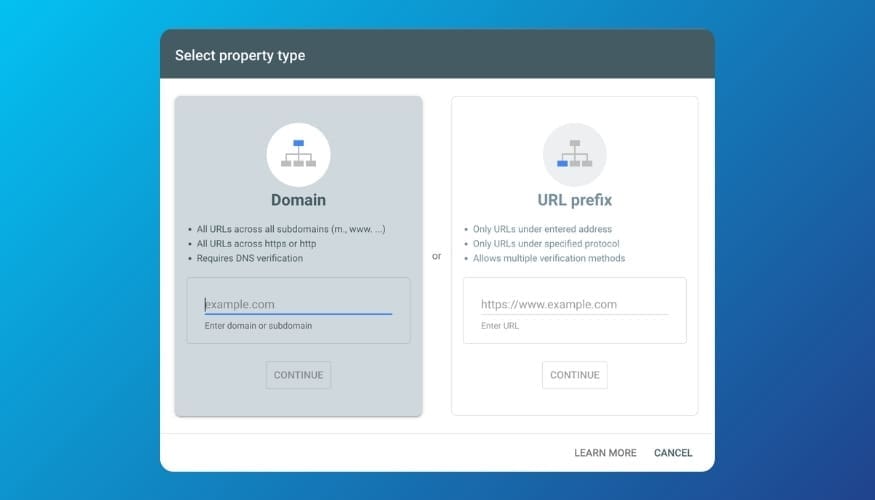
- Add your website property (you'll need to verify ownership)
- Submit your sitemap (usually found at yoursite.com/sitemap.xml)
Most platforms (WordPress, Squarespace, Shopify) have built-in verification methods. Once verified, Google starts collecting data. Give it a few days before expecting meaningful reports.
The GSC Dashboard: Your Website Health Snapshot
When you first log into Search Console, you'll see the Overview dashboard. This is your at-a-glance health check:
- Performance summary: Recent clicks and impressions from search
- Coverage/Indexing status: How many pages Google has indexed vs. excluded
- Experience metrics: Site speed and mobile usability scores
- Enhancements: Any special features (like rich results) active on your site
If you see red warning badges or error counts, don't panic. Most sites have some errors or exclusions, and many are completely normal. The key is knowing which ones matter.
Pro tip: Check this Overview page once a week. Look for sudden drops in clicks or new error spikes. These are your early warning signals.
💡 Need help understanding what you're seeing in GSC? If you're setting up Google Search Console for the first time and want guidance on what to focus on, book a paid strategy call. I'll review your account with you, identify quick wins, and create a prioritized action plan for your business.
The 5 Core Areas of Google Search Console
The 5 Core Areas of Google Search Console: Performance, Indexing, Experience, Enhancements, and Links
Let's break down the main sections you'll actually use:
1. Performance: Understanding Your Search Traffic
What it shows:
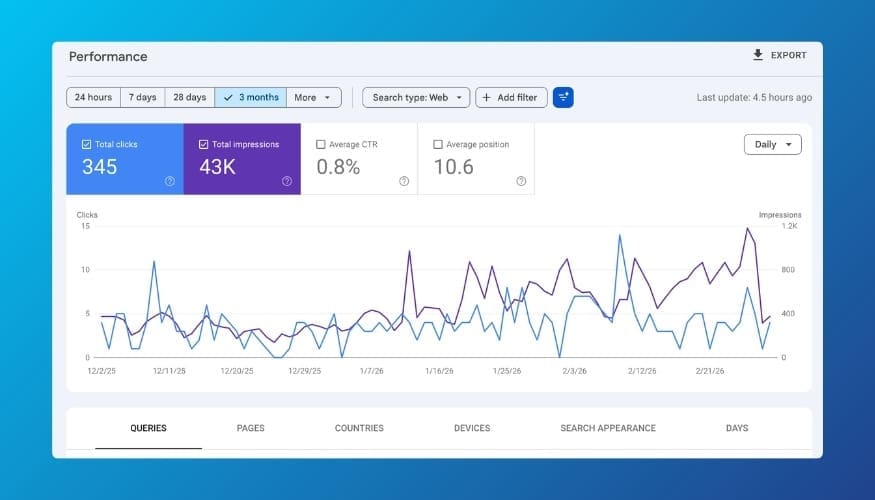
This is where you see how people find your site through Google Search. As of 2026, this report also includes data on appearances in AI Overviews and AI Mode results, so you can track how your content performs across all of Google's search experiences.
Key metrics:
- Total Clicks: How many people clicked through to your site from search results
- Total Impressions: How many times your site appeared in search results (whether clicked or not)
- Average CTR (Click-Through Rate): The percentage of people who clicked after seeing your site (Clicks ÷ Impressions)
- Average Position: Where your site typically ranks (Position 1 = top spot, Position 10 = bottom of first page)
Example scenario:
Your site appears 5,000 times in search results (impressions) but only gets 100 clicks. Your CTR is 2%. This tells you that while Google is showing your site, something about your page titles or descriptions isn't enticing people to click.
How to use it:
- Identify your top-performing keywords, the searches that bring the most traffic
- Find high-impression, low-click pages, which are opportunities to improve titles and descriptions
- Track ranking changes over time
- See which pages are your strongest entry points
- Look for "striking distance" keywords: queries ranking in positions 5 through 15 with high impressions. These are your best opportunities for quick ranking gains with small content updates.
🎯 Go Deeper: Ready to turn this data into action? Our guide to using GSC Performance data to find quick SEO wins shows you exactly how to identify and act on these opportunities.
2. Indexing (Pages): Making Sure Google Can Find You
What it shows:
Which of your pages Google has added to its search index (and which it hasn't).
Why it matters:
If a page isn't indexed, it won't appear in search results. Period. This section shows you the count of:
💬 "If a page isn't indexed, it won't appear in search results. Period."
- Indexed pages (green): Pages Google has successfully added to search
- Not indexed pages (gray): Pages Google found but chose not to add, with reasons why
Common indexing statuses you might see:
Google may show pages as "not indexed" for various reasons, some completely normal and others requiring attention. You might see statuses like "alternate page with canonical tag" (duplicate content), "page with redirect" (intentional forwarding), "404 errors" (deleted pages), "excluded by noindex tag" (hidden from search), or pages that are "discovered but not yet indexed."
The key question: Which ones actually matter for your business?
Here's the reality: Most small business sites show dozens of "not indexed" pages that are working exactly as intended: checkout pages, redirects from old URLs, thank-you pages, or low-value pages Google rightfully ignores. A site with 50 pages might only need 30-35 in Google's index.
How to use it:
- Review the "Not indexed" list monthly
- Identify any important pages that should be in search but aren't
- Fix legitimate issues (wrong settings, broken redirects)
- Don't stress about pages that don't need to be in search, like 404 pages or thank-you pages
Pro tip: Use the URL Inspection tool (the search bar at the top of GSC) to check whether a specific page is indexed. If an important page isn't appearing in search, you can request indexing directly from the tool. This is especially useful after publishing new content or making significant updates to existing pages.
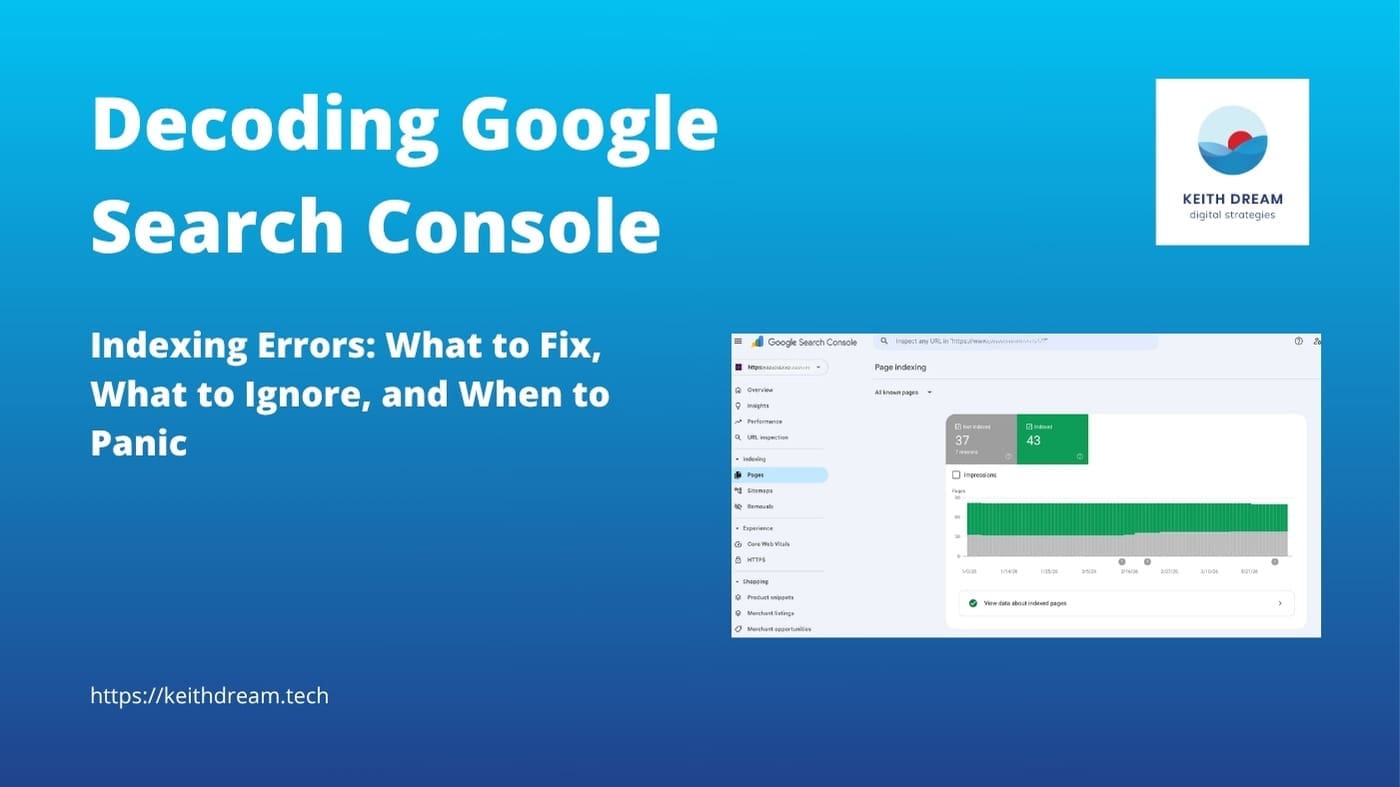
🔍 Go Deeper: Feeling overwhelmed by indexing errors? Our guide to decoding Google Search Console indexing errors breaks down every GSC index error type and tells you exactly what to fix vs. what to ignore.
3. Experience: Site Speed and Mobile Usability
What it shows:
Google's assessment of your website's user experience, primarily through:
- Core Web Vitals: Speed and visual stability metrics
- Mobile Usability: Whether your site works well on phones and tablets
- HTTPS status: Security certificate verification
Why it matters:
Google uses site speed and mobile-friendliness as ranking factors. A slow or broken mobile experience can hurt your search visibility.
Common status:
Many smaller sites show "Not enough data" for Core Web Vitals. This is normal if you don't have high traffic. You can still check your site speed directly using Google PageSpeed Insights.
How to use it:
- Check for mobile usability errors (text too small, buttons too close, etc.)
- Review any security warnings
- If you have enough data, monitor Core Web Vitals trends
- Fix critical speed issues that affect user experience
- Optimize images with lazy loading and proper image metadata for faster page performance
4. Enhancements: Rich Results and Special Features
What it shows:
Special search result features like:
- Product listings
- Recipe cards
- FAQ accordions
- Review stars
- Breadcrumb navigation
Why it matters:
Rich results make your search listings more visible and clickable. However, they require special structured data markup on your site.
How to use it:
For most small businesses, this section will be empty or minimal. That's okay. Focus on getting the basics right (indexing and performance) before worrying about enhancements.
If you do use structured data (many WordPress SEO plugins add it automatically), check here for errors.
A Quick Note on Security and Manual Actions
GSC also includes reports for security issues (malware, hacking) and manual actions (penalties for spam policy violations). For most small business sites, these reports will show "No issues detected."
Check them occasionally for peace of mind, and address any flags immediately since they can significantly impact your search visibility.
5. Links: Who Links to You
What it shows:
- External links: Other websites linking to your content (backlinks)
- Internal links: How your pages link to each other
Why it matters:
Backlinks are still a major ranking factor. The Links report shows which of your pages are attracting links and which sites are linking to you.
How to use it:
- See which content attracts the most backlinks (create more like it). For a deeper look, learn how to perform a competitor analysis to uncover link-building opportunities
- Identify your most-linked pages
- Review your internal linking structure
- Spot any spammy or suspicious backlinks
Monthly GSC Maintenance Checklist
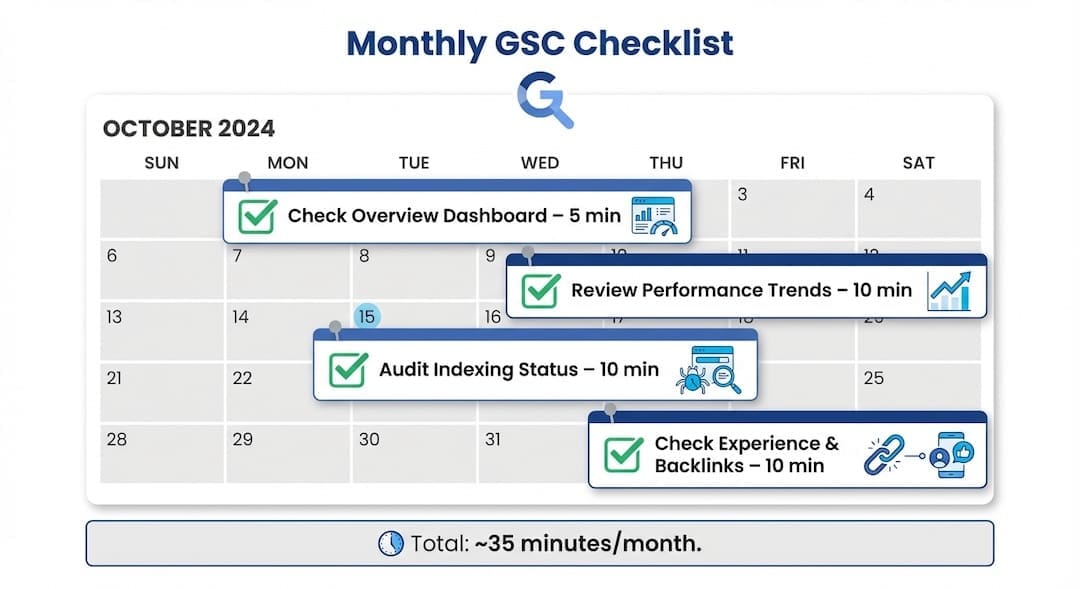
Don't let Google Search Console become another tool you set up and forget.
Here's a simple monthly routine:
☑️ Check the Overview dashboard (5 minutes)
- Look for error spikes or traffic drops
- Note any new warnings
☑️ Review Performance trends (10 minutes)
- Compare this month to last month
- Identify top-performing pages and keywords
- Spot any pages with declining clicks
☑️ Audit Indexing status (10 minutes)
- Review new "Not indexed" pages
- Fix any critical indexing issues on important pages
- Request indexing for any new high-priority content
☑️ Check for Experience issues (5 minutes)
- Review any new mobile usability errors
- Note Core Web Vitals if data is available
☑️ Review new backlinks (5 minutes)
- See which content is attracting links
- Disavow any obvious spam links
Total time investment: 35-45 minutes per month
This routine keeps you informed without overwhelming you. Set a calendar reminder for the same day each month, and stick to it.
Monthly Google Search Console maintenance checklist showing four tasks totaling 35 minutes per month
🚀 Want all your SEO data in one place? The Notion SEO Command Center brings Google Search Console insights, keyword tracking, and your optimization checklist into a single dashboard. Stop switching between tools and start making faster, smarter SEO decisions.
Your Next Steps With Google Search Console
Now that you understand the foundations of Google Search Console, here are your next moves:
Start with the basics:
- Set up GSC if you haven't already
- Verify your property and submit your sitemap
- Let data collect for at least one week
- Bookmark this guide and schedule your first monthly review
Go deeper with focused strategies:
- Building your SEO foundation? Discover why understanding entities in SEO is essential for modern search visibility
- Struggling with indexing errors? Read our complete breakdown of Google Search Console indexing errors: what to fix, what to ignore, and when to panic.
- Quick Wins: Google Search Console quick wins, get them here.
Not sure if SEO is worth the investment?
Understand the real ROI, realistic timelines, and how to get started with our guide on investing in SEO for small business growth.
Want ongoing peace of mind?
With a Website Care Plan, your site stays secure, fast, and optimized while you focus on running your business. Regular updates, security monitoring, and performance checks are all included.
💬 "Google Search Console doesn't have to be intimidating. With this foundation and a simple monthly routine, you'll have the clarity and confidence to keep your website visible, healthy, and growing."
Common Questions About Google Search Console
What's the difference between Google Search Console and Google Analytics?
Google Analytics shows you what visitors do after they arrive on your website (pages viewed, time on site, conversions). Google Search Console shows you what happens before someone clicks: how often you appear in search results, what keywords trigger your pages, and whether Google can properly crawl and index your content. You need both tools for a complete picture of your website's performance.
How long does it take for Google Search Console to start showing data?
After you verify your property, performance data (clicks and impressions) typically appears within a few days. However, indexing reports and other features can take up to a week to fully populate. Google collects data going forward from the verification date, so historical data before setup won't be available.
Can I use Google Search Console on Wix, Squarespace, or Shopify?
Yes. Google Search Console works with any website platform. Each platform has its own verification method, and most have built-in integrations or simple verification steps in their settings. Check your platform's help documentation for "Google Search Console verification" for specific instructions.
Do I need to know code or be technical to use Google Search Console?
No. While GSC provides technical data, you don't need coding skills to benefit from it. The most valuable features (Performance, Indexing status, and basic error checking) are designed for non-technical website owners. This guide focuses on the practical, business-owner-friendly features you can use without technical expertise.
Is Google Search Console really free?
Yes, completely free. There are no premium tiers, hidden fees, or usage limits. It's provided by Google as a tool to help website owners maintain and improve their sites' presence in Google Search results.
How often should I check Google Search Console?
For most small businesses, a weekly 5-minute check of the Overview dashboard and a monthly 35-minute deep dive through all the main reports is sufficient. Set up email alerts in GSC settings to notify you of critical issues between your regular check-ins.




0 Comments