Most people open Google Search Console, see a dashboard full of numbers, and either panic or ignore it completely. Clicks. Impressions. CTR. Average position. It all feels overwhelming when you're just trying to figure out if your SEO is working.
Google Search Console quick wins are simple, fast optimizations you can find in the GSC Performance report. They usually take 15 minutes or less and increase clicks without rewriting your content or building links. The most common type: finding pages that appear frequently in search results but rarely get clicked, then rewriting the title or meta description to earn more of those clicks.
You don't need to understand every metric or spend hours analyzing data. The opportunities are hiding in plain sight.
In this guide, you'll learn:
- What the GSC Performance report actually shows you (and what to ignore)
- How to run a 15-minute Google Search Console quick wins audit step by step
- What good CTR benchmarks look like by search position
- How to optimize title tags and meta descriptions to earn more clicks
- How to spot content gap opportunities hiding in your data
- How to track improvements and build a monthly performance review routine
💡 If you're still new to Google Search Console, read our complete guide to Google Search Console first, then come back here to find your quick wins.
Not sure what some of these terms mean? Jump to the glossary at the bottom. It’s a quick vocab primer that makes the whole guide easier to follow.
Understanding the Google Search Console Performance Report: What Actually Matters
Before we hunt for opportunities, let's get clear on what the Performance report shows you and why it matters.
Navigate to Performance in your Google Search Console. You'll see four main metrics:
- Total Clicks - How many people clicked through to your site from Google search results
- Total Impressions - How many times your site appeared in search results (whether people clicked or not)
- Average CTR - The percentage of impressions that resulted in clicks
- Average Position: Where your site typically ranks in search results
Think of impressions as your site being displayed in a shop window. Clicks are people actually walking in. CTR tells you how compelling your window display is.
Here's the key insight most people miss: High impressions with low clicks is your biggest opportunity. It means Google thinks your content is relevant enough to show, but something about your title or description isn't convincing people to click.
The 15-Minute Google Search Console Quick Wins Audit
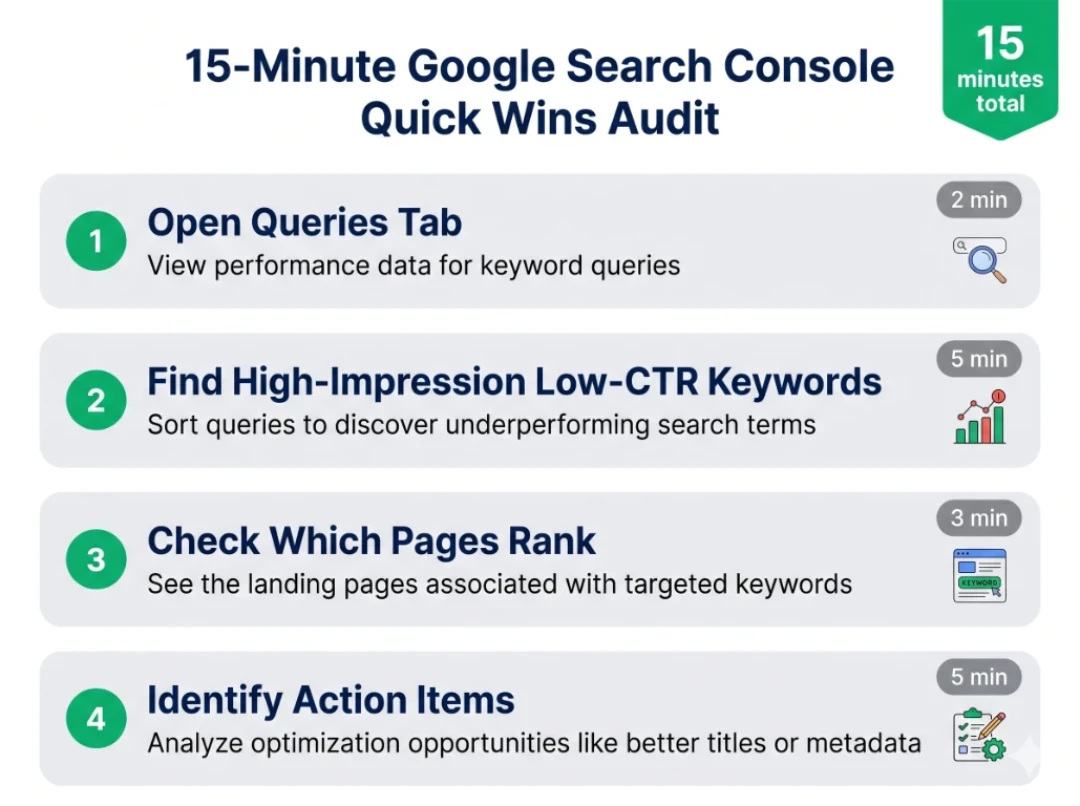
Let's find your low-hanging fruit. This process works whether you have 100 clicks per month or 10,000.
Step 1: Open the Queries tab (2 minutes)
In Performance, click the Queries tab. This shows which search terms are bringing up your site in results.
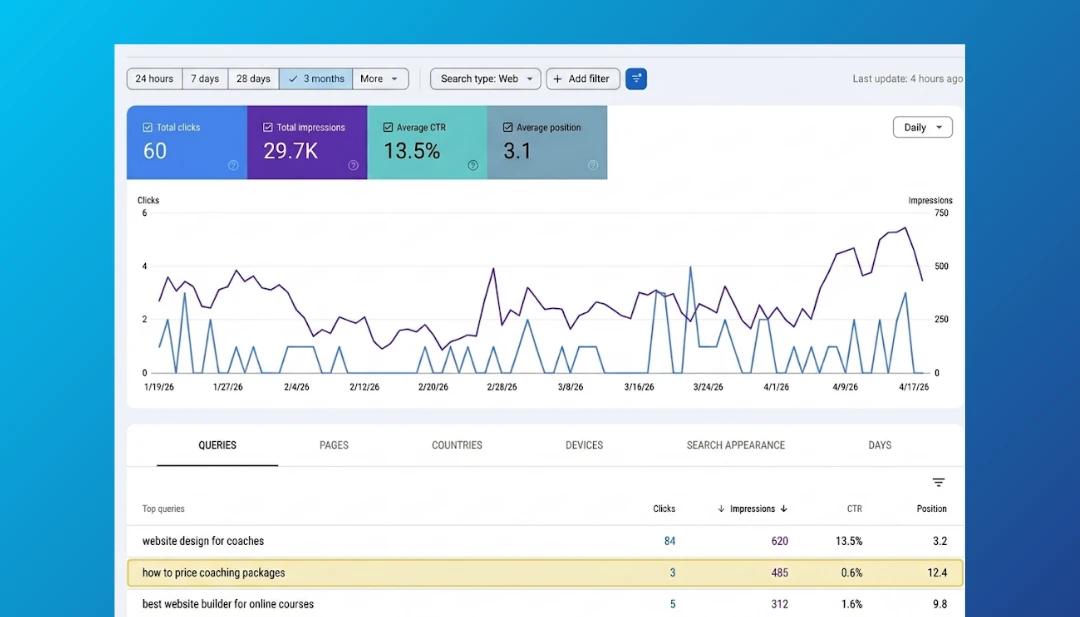
Sort by Impressions (click the Impressions column header). You want to see queries with lots of visibility.
Step 2: Find your high-impression, low-CTR keywords (5 minutes)
Scan down the list looking for this pattern:
- High impressions (shows up frequently in search)
- Low CTR (below 2-3% for most industries)
- Decent position (top 10 if possible, but top 20 works)
These are your gold mines. Google is showing your page to lots of people, but they're scrolling past it.
Example scenario:
You see "business coaching for entrepreneurs" with 200 impressions, 4 clicks, and 2% CTR at position 8. Google is showing your page to people who are actively looking for what you offer. Unfortunately, they're scrolling right past your listing. That's prime territory for improvement.
Step 3: Check which pages rank for those queries (3 minutes)
Click on a high-opportunity query. Then click the Pages tab to see which of your pages ranks for it.
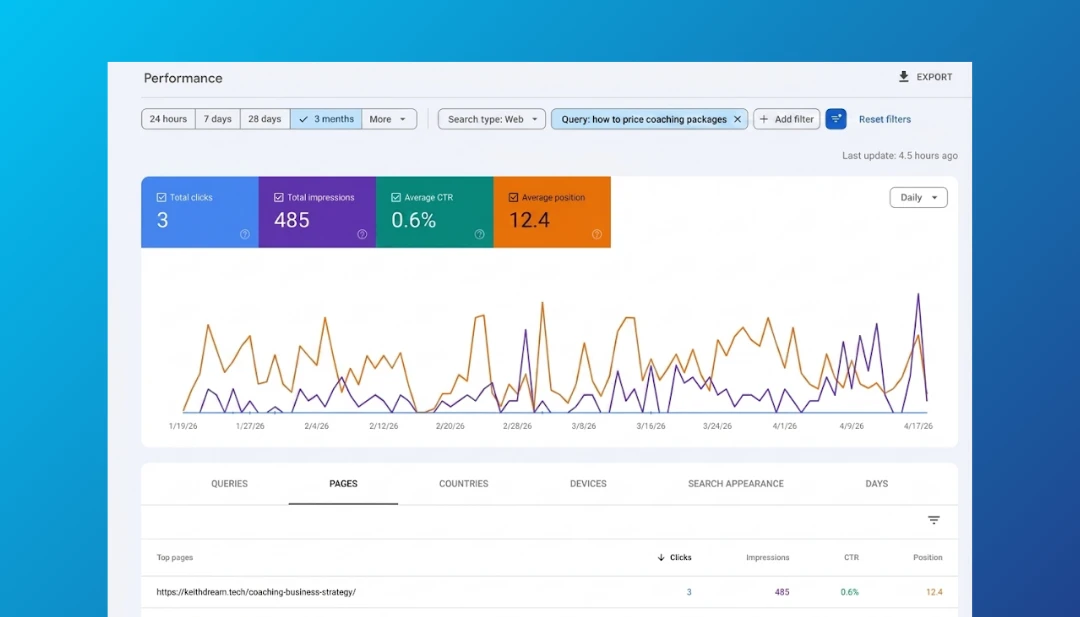
Note the page URL. You'll need this for Step 4.
Step 4: Identify your action items (5 minutes)
For each opportunity you found, ask:
- Is my title compelling? Does it promise clear value and include the search term?
- Is my meta description persuasive? Does it speak to what the searcher wants and include a call to action?
- Does my title/description match search intent? If people are searching "how to," does your title promise a how-to guide?
Write down 3-5 pages that need title and description updates.
That's it. You've just identified your fastest wins.
📨 Get bite-sized SEO and website strategy tips delivered to your inbox — minus the jargon.
What Good CTR Actually Looks Like
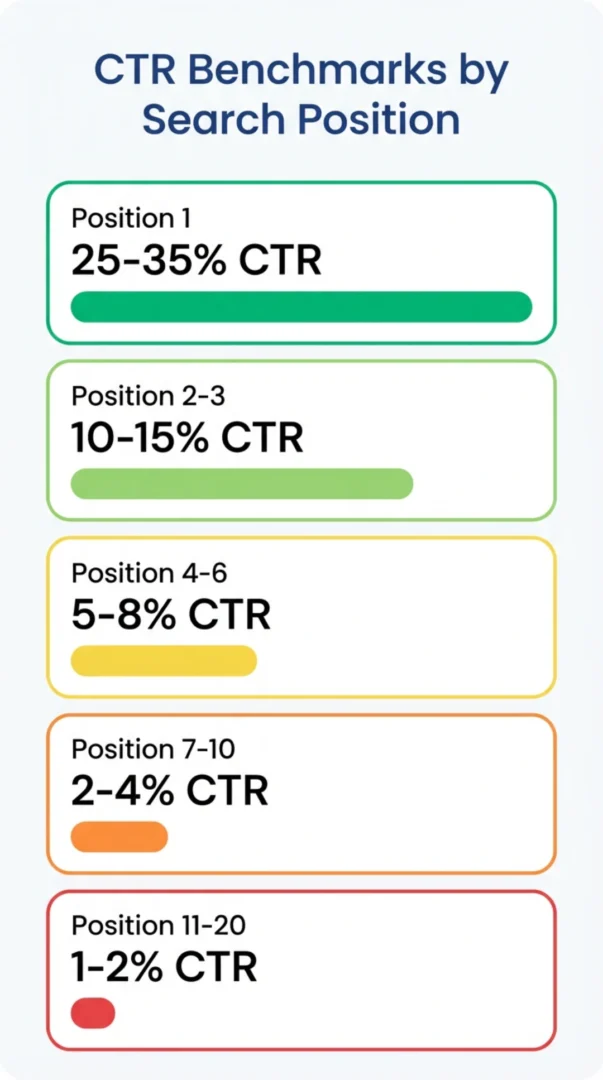
Before you start optimizing, let's set realistic benchmarks. CTR varies by industry and position, but here are useful guidelines:
By position:
- Position 1: 25-35% CTR
- Position 2-3: 10-15% CTR
- Position 4-6: 5-8% CTR
- Position 7-10: 2-4% CTR
- Position 11-20: 1-2% CTR
General benchmarks:
- Below 2%: Needs work - your title/description isn't compelling
- 2-3%: Average - opportunity for improvement
- 4-5%: Good - you're doing something right
- 6%+: Excellent - study this page and replicate what works
If you're ranking in position 6 but only getting 2% CTR, that's a clear signal. The page above and below you are stealing clicks because their titles are more appealing.
What this means for your business: Let's make this concrete. If your services page gets 300 impressions per month at 1.5% CTR, that's about 4–5 visitors. Improve that CTR to 4% and you're at 12 visitors — potentially 2–3 new inquiries per month, from one title and description update. No new content, no ads, no extra cost.
💡 A note about AI Overviews: Starting in 2025, Google began showing AI-generated answer summaries at the top of some search results. These appear on roughly 30% of searches, mostly broad, informational questions. When an AI Overview shows up, it can push organic results further down the page and lower your CTR, even if your ranking hasn't changed. The good news: niche, service-specific queries (like "voice coach for singers" or "business coaching for women entrepreneurs") are much less likely to trigger AI Overviews. If your CTR seems lower than the benchmarks above, this may be why. It doesn't mean you're doing anything wrong.
How to Optimize Titles and Descriptions for Better CTR
Once you've identified pages with low CTR, here's how to fix them.
Title Tag Optimization
Your title is the blue clickable link in search results. Make it count.
Good title checklist:
- 55-65 characters (or it gets cut off in results)
- Includes your target keyword (ideally near the beginning)
- Promises clear value (what will the reader get?)
- Uses power words (Guide, Complete, Easy, Quick, Step-by-Step)
- Adds specificity (numbers, years, "2026 Guide")
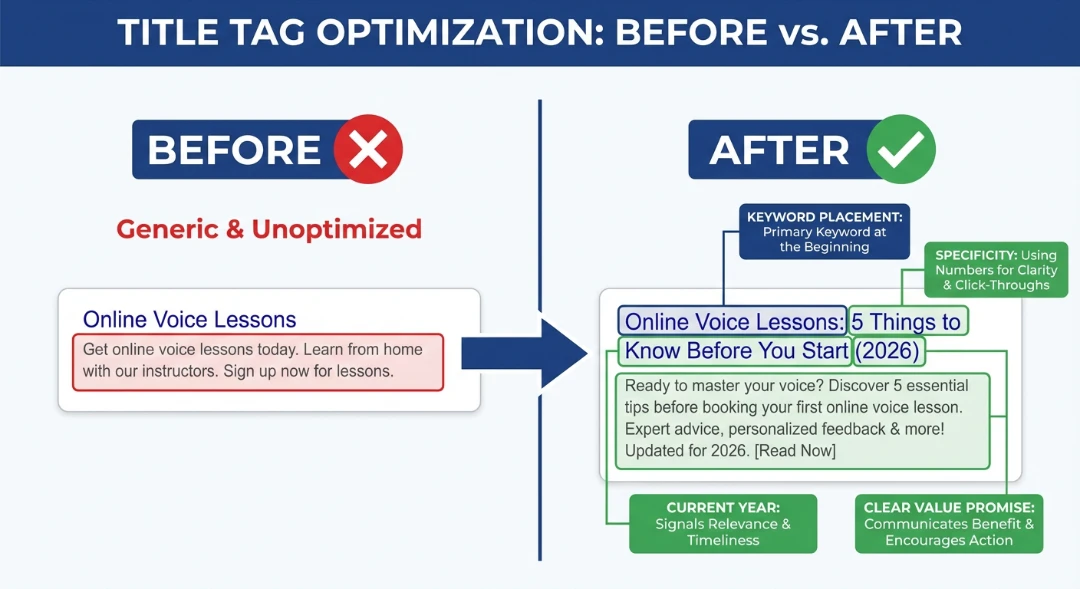
Example transformation:
- Before: "Online Voice Lessons"
- After: "Online Voice Lessons: 5 Things to Know Before You Start (2026)"
The "after" version tells you exactly what you'll get (5 things to know), sets expectations (before you start), and signals it's current (2026).
One thing to know: Google sometimes rewrites your title tag in search results. If you notice your carefully crafted title isn't showing up exactly as you wrote it, that's normal. Google does this for about 75% of pages. Use the URL Inspection tool to see what Google is actually displaying. Even when Google modifies your title, the keywords and structure you chose still influence how your page ranks.
Meta Description Optimization
Your description is the gray text under the title in search results. Google sometimes rewrites these, but a good description often gets displayed.
Good description checklist:
- Aim for 120-160 characters (Google measures display width in pixels, not characters, so this is a guideline — not a hard cutoff)
- Includes your target keyword (gets bolded in search results, which draws the eye)
- Speaks to the searcher's problem (empathy first)
- Promises the solution (what they'll learn or accomplish)
- Includes a call to action (Learn how, Discover, Find out)
- Uses active voice (more engaging than passive)
Just like with title tags, Google sometimes rewrites your meta description based on the search query. Writing a clear, compelling description increases the chance Google uses yours instead of pulling random text from your page.
Example transformation:
- Before: "We offer business coaching programs for entrepreneurs looking to grow their businesses and reach new goals."
- After: "Ready to grow your business but not sure where to focus? Learn how 1:1 coaching helps entrepreneurs get clarity, set priorities, and take action."
The "after" version speaks directly to the reader's situation, promises a clear outcome, and feels like a real conversation instead of a brochure.
Finding Content Gap Opportunities in Google Search Console
Here's a quick win most people miss: queries where you're getting impressions but almost no clicks because your position is too low.
How to find content gaps:
- In Performance > Queries, filter for queries with:
- At least 50 impressions
- Position 11-30 (page 2-3 of results)
- Very low clicks (under 10)
- These queries represent topics where:
- You have relevant content (Google is showing you)
- You're not quite authoritative enough yet (position too low)
- Creating new, comprehensive content could help
Action steps:
- If the query is closely related to an existing page, consider expanding that page with more depth
- If it's a distinct topic, create new content specifically targeting that query
- If multiple related queries appear, consider creating a comprehensive guide covering all of them
Example:
You see "how to price coaching packages" at position 18 with 80 impressions and 2 clicks. You have a general coaching services page, but nothing specifically about pricing. This signals an opportunity to create a detailed guide about pricing strategies for coaches. This is a topic your audience is clearly searching for.
Bonus: "Striking distance" pages
While you're looking at content gaps, also filter for pages ranking at positions 5–15 with decent impressions. These are sometimes called "striking distance" pages. You're close enough to page 1 (or the top of page 1) that small improvements can make a real difference. For niche service businesses, the competition at these positions is often just 2–3 other sites, not 50. Add a few internal links from other pages on your site, update the content to be more thorough, and request re-indexing. That alone can be enough to move from position 12 to page 1.
Pages vs Queries: Two Different Lenses
So far we've focused on Queries (what people search for). The Pages view gives you a different angle.
When to use Pages view:
Click the Pages tab in Performance to see how each URL performs overall.
Sort by Impressions to find pages that show up a lot but aren't converting impressions to clicks.
What this tells you:
- If a page has high impressions across many queries but low CTR, the page title/description might be the problem regardless of which query triggered it
- If a page has declining clicks over time, the content might be getting stale or competitors might have passed you
Quick win opportunity:
Find pages with 100+ impressions and CTR under 3%. (For niche service businesses like coaching or creative services, your numbers will naturally be smaller than big commercial sites. That's fine. Even 50–200 impressions is meaningful data when it's from people actively looking for what you offer.)
Update the title and description for that page. This single change can impact dozens of related queries that trigger that page.
Tracking Your Google Search Console Quick Wins
After you make title and description updates, here's how to track whether they worked.
Timeline expectations:
- A few days to 2 weeks: Google picks up your title and description changes. For smaller sites, this can take longer than for large, frequently crawled sites. You can speed this up by using the URL Inspection tool in GSC and clicking "Request Indexing" after making changes.
- 2-4 weeks: You'll start seeing CTR changes reflected in GSC (the data lags slightly behind real-time).
- 1 month: Full picture of impact becomes clear.
💡 Heads up on GSC data: Google Search Console had a known issue from May to September 2025 where impression counts were inflated due to a logging bug. If you're comparing data from that period to more recent numbers, a drop in impressions may be a data correction, not a real decline. When in doubt, focus on click trends for the most reliable picture.
How to track:
- Before you make changes: Take a screenshot of your current metrics for the page (impressions, clicks, CTR, position)
- Note your changes: Keep a simple log of what you updated and when
- Check back in 2 weeks: Return to Performance > Pages, find your updated page, and compare:
- Is CTR improving?
- Are total clicks increasing?
- Has your position improved (bonus)?
Success indicators:
- CTR increases by 1-2 percentage points (big win)
- Total clicks increase even if impressions stay flat
- You maintain or improve position while getting more clicks
If it didn't work:
- Try a different angle in your title (more specific, different benefit)
- Check if competitors changed their titles (you might need to differentiate more)
- Verify the page content actually delivers on your new title's promise
What About Position and Impressions?
Low impressions means Google isn't showing your page for the queries you care about. You likely need stronger content on that topic, more internal links from other pages on your site, or better keyword targeting.
Low position (15–30) means Google sees your content as relevant but not authoritative enough for page 1 yet. Improve the content depth, make sure it's current, and add internal links from your stronger pages.
The key principle: Fix CTR first — it's faster and cheaper than climbing positions. Once your titles and descriptions are solid, then focus on moving up.
Your Monthly GSC Performance Review Routine
Make this a 20-minute monthly habit:
Step 1: Check overall trends (3 minutes)
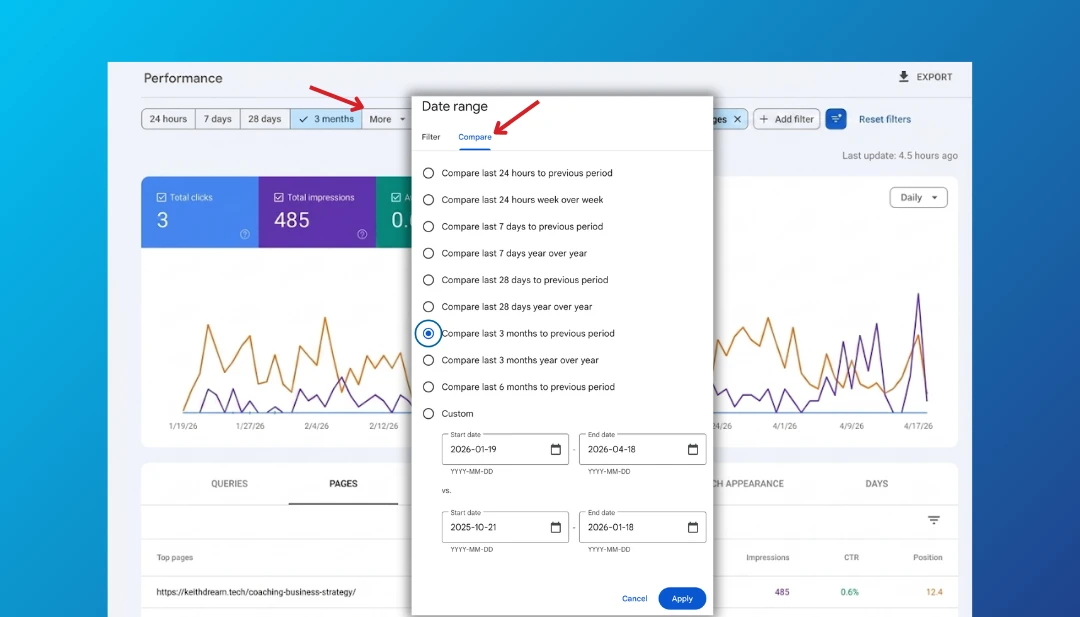
Compare last 28 days to previous 28 days. Are total clicks and impressions trending up or down? Look for sudden drops that need investigation.
(Tip: In the date picker at the top of the Performance report, click "Compare" to run a side-by-side comparison. This makes it much easier to spot what changed and where.)
Step 2: Identify new opportunities (7 minutes)
Run the 15-minute audit from earlier, focusing on queries you haven't optimized yet. Always keep a list of 3-5 pages to improve next.
Step 3: Check previous optimizations (5 minutes)
Review pages you updated last month. Did CTR improve? Document what worked so you can replicate it.
Step 4: Spot declining pages (5 minutes)
Look for pages that had good CTR but are declining. Competitors might have improved their titles, or the content might need refreshing.
This routine ensures:
- You're always working on the highest-impact opportunities
- You learn what works for your specific audience
- You catch problems before they become major traffic drops
📖 Save this routine. Bookmark this page or save the checklist above so you can reference it each month. The steps are the same every time. Once you've done it twice, it becomes second nature.
Common Mistakes to Avoid
- Optimizing queries you can't win: If you're at position 45, no title change will help. Focus on pages ranking in positions 1–20.
- Using clickbait titles: Promising "10X Your Traffic" with generic content earns clicks but destroys engagement. Google notices. Be compelling AND accurate.
- Ignoring search intent: If someone searches "life coach vs therapist" and lands on your sales page, they'll bounce. Match your title and content to what the searcher actually wants.
- Changing everything at once: Stick to 3–5 pages per month so you can track what worked.
- Only looking at branded queries: If all your clicks come from people searching your name, you're not being discovered by new audiences. Focus on non-branded terms.
When to Move Beyond Quick Wins
At some point, you'll exhaust the low-hanging fruit. CTR will be consistently strong, and the easy title/description wins will be done. That's when it's time to invest in deeper work: creating new content for gaps you've identified, building backlinks, improving site speed, and analyzing what competitors are doing differently. But start here first. Quick wins build momentum and teach you how your audience actually searches.
Keep It Simple: 80/20 Your GSC Performance Data
Google Search Console Performance data can feel overwhelming, but the highest-value actions are simple:
The 20% of effort that gets 80% of results:
- Find queries with high impressions and low CTR
- Improve titles and descriptions for those pages
- Track whether CTR improves over 2-4 weeks
- Repeat monthly
That's it. You don't need fancy tools, expensive courses, or hours of analysis. You need 15 focused minutes finding opportunities and 30 minutes updating titles and descriptions.
Glossary: Terms and Acronyms Used in This Guide
New to SEO terminology? Here's a plain-language reference for every term and acronym used in this article and in Google Search Console.
AI Overview: An AI-generated answer summary that Google sometimes shows at the top of search results. It appears on about 30% of searches (mostly broad, informational questions) and can push regular results further down the page.
Average Position: Where your site typically shows up in search results. Position 1 is the top spot. Position 10 is usually the last result on the first page of Google.
Backlinks: Links from other websites that point to yours. They signal to Google that your content is trustworthy. Think of them like referrals from other businesses.
Clicks: The number of times someone actually clicked through from a Google search result to visit your website.
Core Web Vitals: A set of Google metrics that measure how fast your website loads, how quickly it responds to interaction, and how stable the layout is while loading. These are factors Google uses when deciding where to rank your pages.
Crawl / Crawling: When Google sends automated programs (called "bots") to visit and read your website pages. This is how Google discovers your content and checks for updates.
CTR (Click-Through Rate): The percentage of people who click on your listing after seeing it in search results. If 100 people see your page listed and 3 of them click, your CTR is 3%.
GSC: Short for Google Search Console.
Impressions: The number of times your website appeared in Google search results, whether someone clicked or not. High impressions mean Google is showing your site to people.
Index / Indexing: When Google adds your page to its searchable database. If a page isn't indexed, it can't appear in search results. (See our guide on indexing errors for more.)
Internal Links: Links from one page on your website to another page on the same website. They help Google understand your site structure and help visitors find related content.
Keyword: A word or phrase someone types into Google. Your goal is to show up when people search for keywords related to your services — like "business coach for women" or "online voice lessons."
Meta Description: The short summary text (usually 1–2 sentences) that appears below your title in search results. You set this in your website's SEO plugin (like SmartCrawl, Yoast, or Rank Math).
Organic Results: Search results that appear naturally based on relevance and quality, not paid ads. These are the results you earn through SEO.
Queries: The actual words and phrases people typed into Google that caused your site to appear in results. In GSC, the Queries tab shows you exactly what people searched for.
Search Intent: What the person typing a search query actually wants to find. For example, "business coach near me" signals they want to hire someone, while "what does a business coach do" signals they want information first.
SERP (Search Engine Results Page): The page Google shows after someone types in a search. It includes organic results, ads, and sometimes AI-generated summaries.
Title Tag: The clickable blue headline that represents your page in search results. You set this in your website's SEO settings. It is different from the visible heading (H1) on your actual page.
URL Slug: The part of your web address after your domain name. For example, in keithdream.tech/coaching-services, the slug is coaching-services.
All caught up on the terminology? Head back to the top and read through the guide. You’ll find it all makes a lot more sense now.
Frequently Asked Questions About Google Search Console Quick Wins
What is a good CTR in Google Search Console?
A good CTR depends on your average position. For position 1, aim for 25-35%. For positions 4-6, 5-8% is solid. Generally, anything above 4-5% across all positions is good, and 6%+ is excellent. If your CTR is below 2%, your titles and descriptions need work regardless of position.
How long does it take to see results after optimizing titles and meta descriptions?
Google typically picks up title and description changes within a few days to two weeks, depending on how often it crawls your site. You can speed this up by using the URL Inspection tool and clicking "Request Indexing." You'll start seeing CTR changes in your Google Search Console Performance report within 2–4 weeks. Give it a full month to see the complete impact before deciding whether to try a different approach.
What's the difference between impressions and clicks in GSC?
Search impressions show how many times your site appeared in Google search results, whether someone clicked or not. Clicks show how many people actually clicked through to visit your site. High impressions with low clicks means people see you but aren't clicking. That's your biggest opportunity to improve search rankings with gsc.
Should I focus on improving CTR or average position first?
Always start with CTR improvements. They're faster, easier, and don't require content overhauls. If you're already ranking on page 1-2 (positions 1-20), optimizing your title and description can double your traffic in weeks. Position improvements take longer and require more effort. Once your CTR is solid (4%+), then work on position.
How often should I check my Google Search Console performance data?
Check monthly for optimization opportunities. Run the 15-minute audit to find high impression low click pages, review your previous month's changes to see what worked, and identify any declining pages. More frequent checking won't speed up results and can lead to hasty decisions based on incomplete data.
What does it mean if I have high impressions but low clicks?
It means Google considers your content relevant enough to show in search results, but your title tag or meta description isn't compelling enough to earn clicks. This is actually good news: you don't need to improve your content or build links. You just need better copy in your title and description. These are your easiest google search console quick wins.
Ready to find your quick wins?
- Open GSC Performance > Queries right now
- Sort by Impressions
- Find 3 queries with CTR under 3%
- Update those titles and descriptions today
- Set a reminder to check results in 2 weeks
Want to understand indexing issues holding back your Performance data? Check out our guide on decoding Google Search Console indexing errors to make sure Google can actually show your improved pages in search.
And remember: SEO isn't about perfection. It's about consistently making small improvements that compound over time. Start with one page today.



0 Comments