
Your website generates valuable data every day. Google Analytics and Google Search Console are two free tools from Google that help you understand how people find and interact with your site. Together, they paint a complete picture of your website's performance.
Understanding Your Analytics Tools
Google Analytics tracks what happens on your website. It shows you:
- How many people visit your site
- Which pages they view and how long they stay
- Where your visitors come from (search engines, social media, direct visits)
- What actions they take (purchases, form submissions, downloads)
Think of it as a detailed report of what visitors do once they arrive at your site.
Google Search Console tracks how your website appears in Google Search. It shows you:
- Which search terms bring people to your site
- How often your pages appear in search results
- Your site's technical health and any issues Google finds
- Which websites link to yours
Think of it as a window into how Google sees and ranks your website.
How They Work Together
These tools complement each other perfectly. Google Search Console shows you how people find your site through search, while Google Analytics shows you what they do once they arrive.
Together, they help you make smarter decisions about content, design, and marketing.
For a full walkthrough of Search Console's features and a simple monthly routine, see our complete Google Search Console guide for small business owners. Once you have access set up, the Google Search Console Quick Wins guide is a great next step for putting that data to work.
Giving Access to Users in Google Analytics and Search Console
Knowing how to add users to Google Analytics and Google Search Console is one of the first things I walk every new client through during onboarding. Your website generates valuable data every day, and making sure the right people have access means that data actually gets put to work. It shouldn't just be collected and ignored.
How to add users to Google Analytics means navigating to your property's access management settings, entering a collaborator's email address, and selecting the appropriate role. You can do all this without giving up ownership of your account. The same principle applies to Search Console.
In this guide, you'll learn:
- What Google Analytics and Google Search Console do (and how they differ)
- Why granting your consultant access benefits your site's performance
- Step-by-step instructions to add a user to Google Analytics
- Step-by-step instructions to add a user to Google Search Console
- Answers to common questions about permissions and access
Understanding Your Analytics Tools
Google Analytics tracks what happens on your website. It shows you:
- How many people visit your site
- Which pages they view and how long they stay
- Where your visitors come from (search engines, social media, direct visits)
- What actions they take (purchases, form submissions, downloads)
Think of it as a detailed report of what visitors do once they arrive at your site.
Google Search Console tracks how your website appears in Google Search. It shows you:
- Which search terms bring people to your site
- How often your pages appear in search results
- Your site's technical health and any issues Google finds
- Which websites link to yours
Think of it as a window into how Google sees and ranks your website.
How They Work Together
These tools complement each other perfectly. Google Search Console shows you how people find your site through search, while Google Analytics shows you what they do once they arrive. Together, they help you make smarter decisions about content, design, and marketing. For a full walkthrough of Search Console's features and a simple monthly routine, see our complete Google Search Console guide for small business owners. Once you have access set up, the Google Search Console Quick Wins guide is a great next step for putting that data to work.
Why Add Someone to Your Accounts?
Many website owners grant access to their web developer, SEO consultant, or digital strategist. In fact, adding analytics access is one of the first steps in my onboarding process with new clients. It is the foundation that makes everything else possible. This allows your technical partner to:
- Monitor your site's performance and catch issues early
- Track the results of optimization work
- Make data-driven recommendations for improvement
- Generate reports without bothering you for access each time
Granting access doesn't give up ownership. You remain the account owner and can remove access anytime. Your partner simply gets the tools needed to help your website succeed.
Need help setting this up? Our website support plans take care of Google Analytics and Search Console access for you.
💡 Part of the Google Search Console series: Granting access is step one. Read the complete Google Search Console guide for small business owners to see how to put that data to work once you're connected..
How to Add Users to Google Analytics and Search Console
Use the email address provided by your web consultant, SEO specialist, or digital strategist in the steps below. It is important to use the exact email they gave you for this purpose. Agencies and consultants (like me) will often use a specific email address for logging into support tools that is not the same as the one you use for support tickets.
Add User to Google Analytics
Access link: analytics.google.com
Note: You must have Administrator access to the Google Analytics property to add new users. If you don't see the access management options described below, you may only have Editor or Viewer access.
Grant Admin Access to Google Analytics
- Sign In to Google Analytics:
- Go to Google Analytics
- Sign in with your Google account
- Select the Correct Account:
- Make sure you're in the correct Google Analytics account
- If you have multiple accounts, select the one where you want to add the admin user
- Open Admin Settings:
- Look at the bottom left corner of the dashboard
- Click the gear icon labeled "Admin"
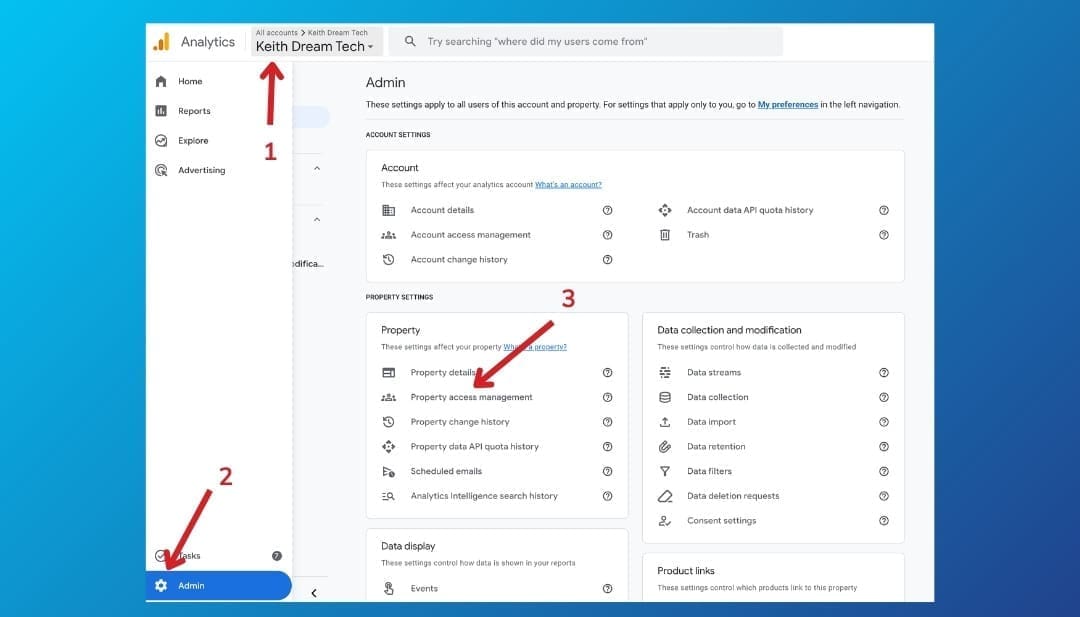
- Go to Property Access Management:
- In the Admin panel, under the Property column, click "Property access management"
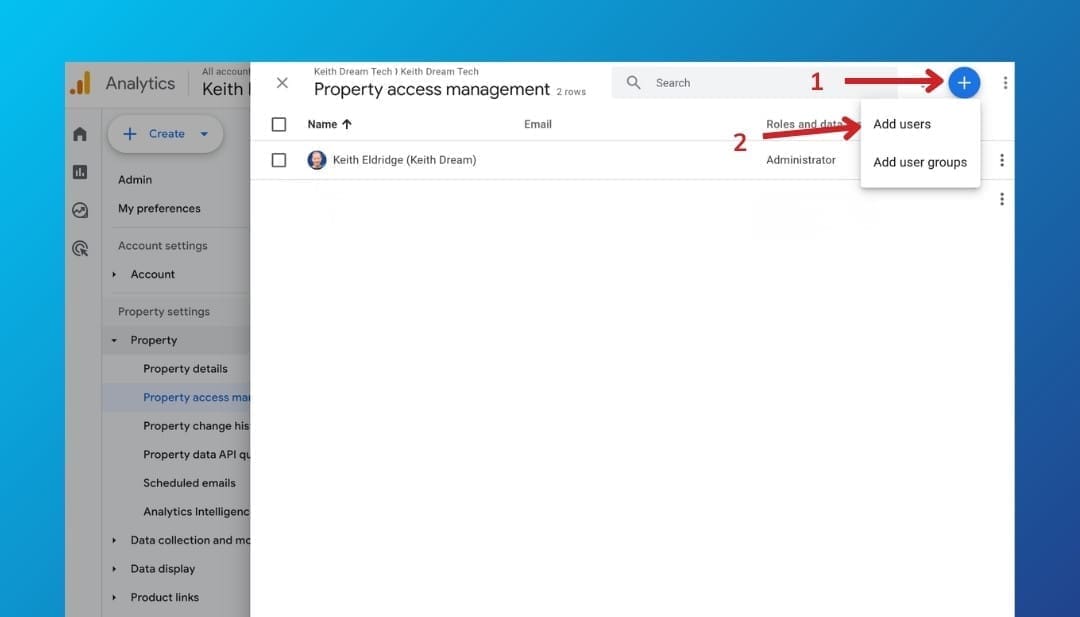
- Add a New User:
- Click the blue + button in the top right corner
- Select "Add users"
- Enter User Details:
- Enter the email address provided by your consultant
- Note: The email must be associated with a Google account
- Leave "Notify new users by email" checked
- Select a Role:
- Choose the appropriate role from the dropdown:
- Editor: recommended for most consultants (can configure settings and create reports)
- Administrator: if your consultant also needs to manage other users
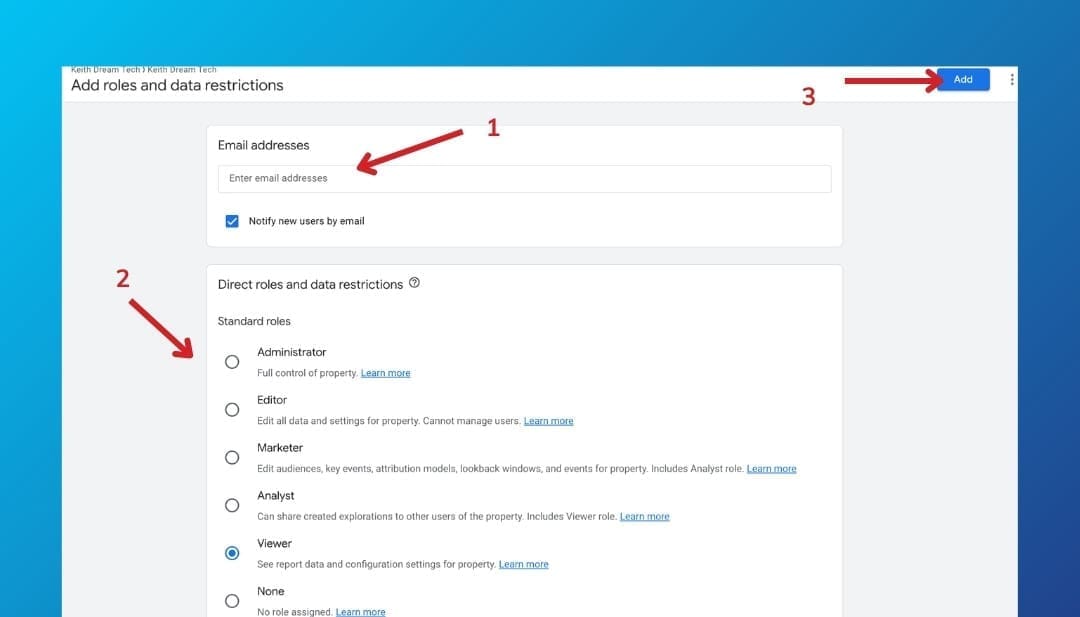
- Confirm and Add:
- Click the "Add" button
- Verify Addition:
- You should now see the new user listed in the Property access management page
Add User to Google Search Console
Access link: search.google.com/search-console
Note: You must be an Owner (Verified or Delegated) of the Search Console property to add new users. "Full" users cannot grant access to others.
Grant Admin Access to Search Console
- Sign In to Google Search Console:
- Go to Google Search Console
- Sign in with your Google account
- Select the Correct Property:
- You'll see a list of websites (properties) you have access to
- Click on the website you want to add an admin user to
- Use the "Domain property" if available
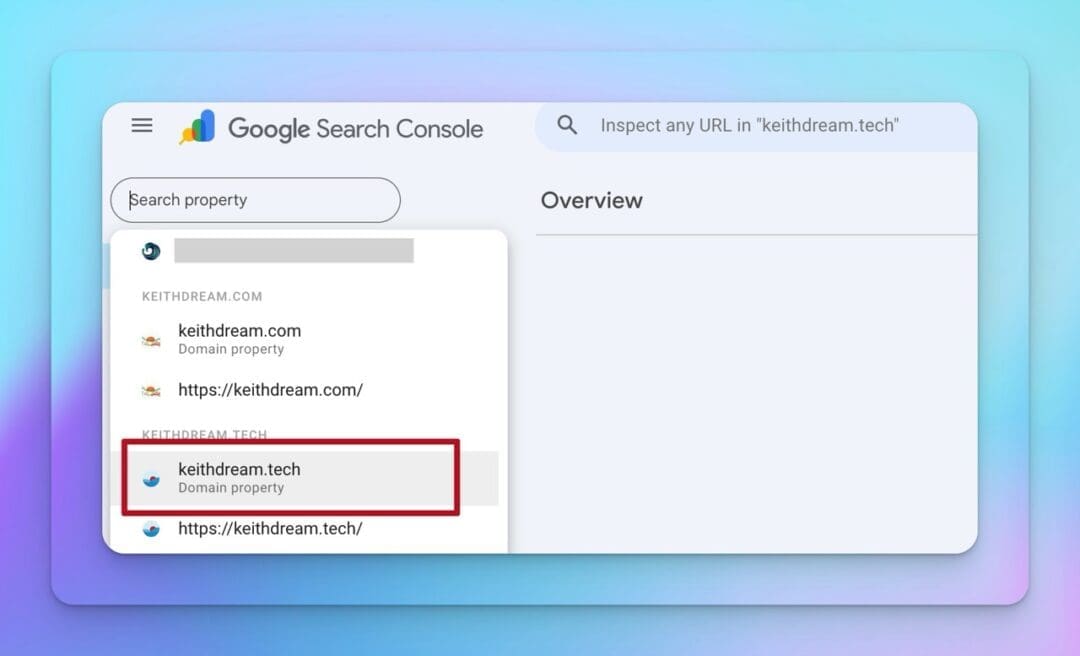
- Open Settings:
- Go to Users and Permissions:
- In the Settings page, click "Users and permissions"
- Add New User:
- Click the blue "Add user" button
- Enter User Details:
- Enter the email address provided by your consultant
- Set Permissions:
- In the "Permissions" dropdown, select "Full" to grant admin access
- Confirm and Add:
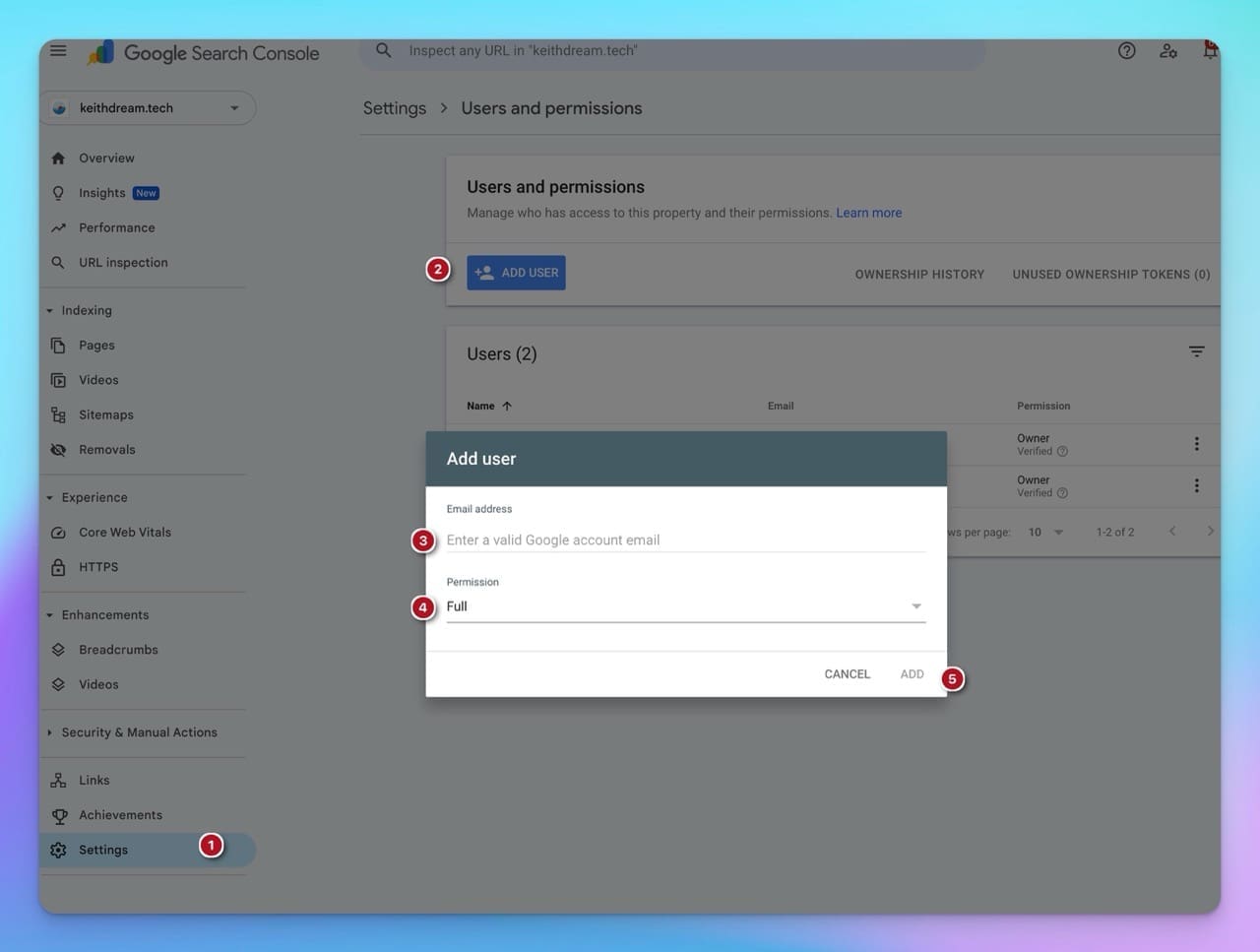
- Verify Addition:
- You should see the new user's email listed on the Users and permissions page
Frequently Asked Questions
How do I add a user to Google Analytics?
Sign in to Google Analytics and click the Admin gear icon at the bottom left. Under the Property column, click Property access management. Click the blue + button and select Add users. Enter the email address and select the Editor or Administrator role. Click Add. The user will receive an email notification.
What steps are needed to add someone to Google Search Console?
Log into Search Console and select your property. Use Domain property if available. Click Settings in the left menu and select Users and permissions. Click Add user and enter the email address. Set permission level to Full for admin access and click Add.
Why should I grant admin access to my consultant?
Granting admin access allows your consultant to monitor site performance, track optimization results, make data-driven recommendations, and generate reports. You remain the account owner and can revoke access anytime. This saves you time and ensures your site stays healthy.
What's the difference between Google Analytics and Google Search Console?
Google Analytics tracks what happens on your website. It shows visitor behavior, traffic sources, and conversions. Google Search Console shows how your site appears in Google Search. It reveals search terms, impressions, technical issues, and backlinks. Together, they give you the complete picture.
Can I remove user access later if needed?
Yes. You maintain full ownership and can remove or modify permissions anytime. Go back to the same user management settings where you added them. Adjust or remove access as needed through the Users and Permissions section.
Need Help?
If you'd prefer to hand this off entirely, our website support plans handle Google Analytics and Search Console access for you.
Once you've granted access, you've laid the groundwork for a real working partnership. This is the kind where your consultant can see what's actually happening on your site and give you recommendations grounded in data, not guesswork.
If you found this guide helpful, explore the rest of the Google Search Console series for more ways to get the most out of your free Google tools.





0 Comments