
You just checked Google Search Console and your stomach dropped. Red badges. Error counts. Pages marked "not indexed." Suddenly, the tool that's supposed to help you feels like it's delivering bad news.
Here's the truth: Most of those "errors" aren't actually problems. In fact, many are working exactly as intended.
Google Search Console indexing errors are status messages explaining why Google hasn't added certain pages to its search index. Most are informational — not actual problems — and only a handful typically need your attention.
If you've been staring at your GSC indexing report feeling overwhelmed or worried you're missing something critical, this guide will walk you through the most common indexing statuses, what they mean, and most importantly: which ones actually matter for a small business website.
A Real Client Story: Google Search Console Indexing Errors on a Squarespace Site
One of my clients opened Google Search Console and saw a sea of warnings and “Not indexed” pages, and panic set in: “Is my site broken?”
But once we slowed down and looked at the reasons, the story changed. Many of those exclusions were normal (redirects, canonicals, and pages that simply shouldn’t be in search). The win wasn’t “getting to 100% indexed.” The win was building a simple triage habit: make sure the pages that should be found (services, key resources, important posts) are indexed, and stop losing time to noise.
If you’re on Squarespace (like this client was), the exact labels can look scary, but the fix path is usually straightforward.
In this guide, you'll learn:
- What each Google Search Console indexing error actually means
- Which errors to fix and which to safely ignore
- How to use the URL Inspection tool to troubleshoot Google indexing issues
- A 15-minute monthly audit workflow to stay ahead of problems
- When an indexing error is a real emergency vs. business as usual
New to Google Search Console? Start with our complete guide to Google Search Console for the full foundation, then come back here to master indexing errors.
How the Google Search Console Indexing Report Works
Before we dive into specific errors, let's clarify what the page indexing report actually shows you.
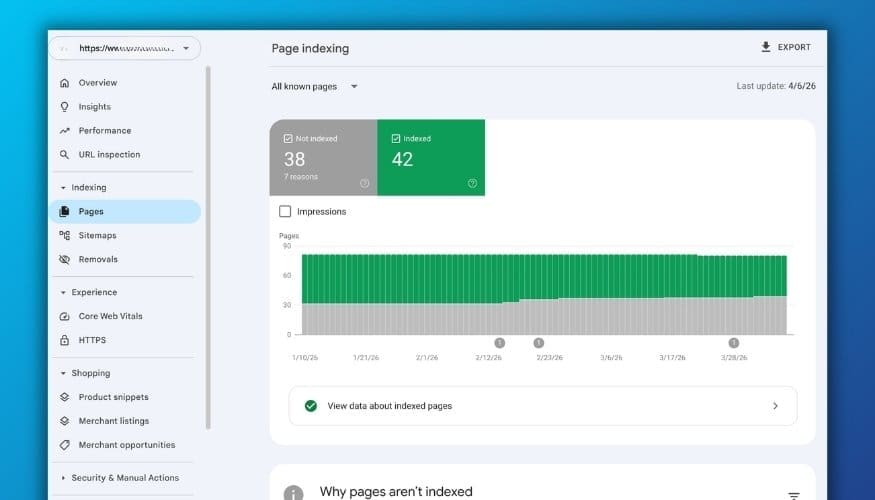
When you navigate to Indexing > Pages in Google Search Console, you'll see two main categories:
- Indexed pages (green) - Pages Google has successfully added to its search index and can show in results
- Not indexed pages (gray) - Pages Google found but chose not to add, with specific reasons why
Here's what most people get wrong: Not all pages should be indexed. A site with 50 pages might only need 30-35 in Google's index. The rest - thank you pages, checkout flows, 404 pages - don't belong in search results and shouldn't worry you.
"Not all pages should be indexed. A site with 50 pages might only need 30-35 in Google's index. Stop chasing 100% indexation and focus on getting the right pages indexed."
The real question isn't "Why do I have not indexed pages?" It's "Are my important pages indexed, and are there legitimate issues blocking them?"
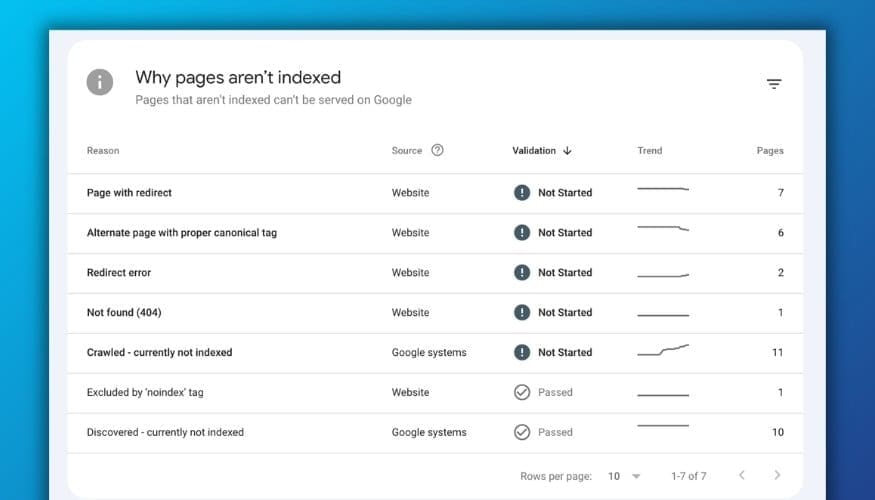
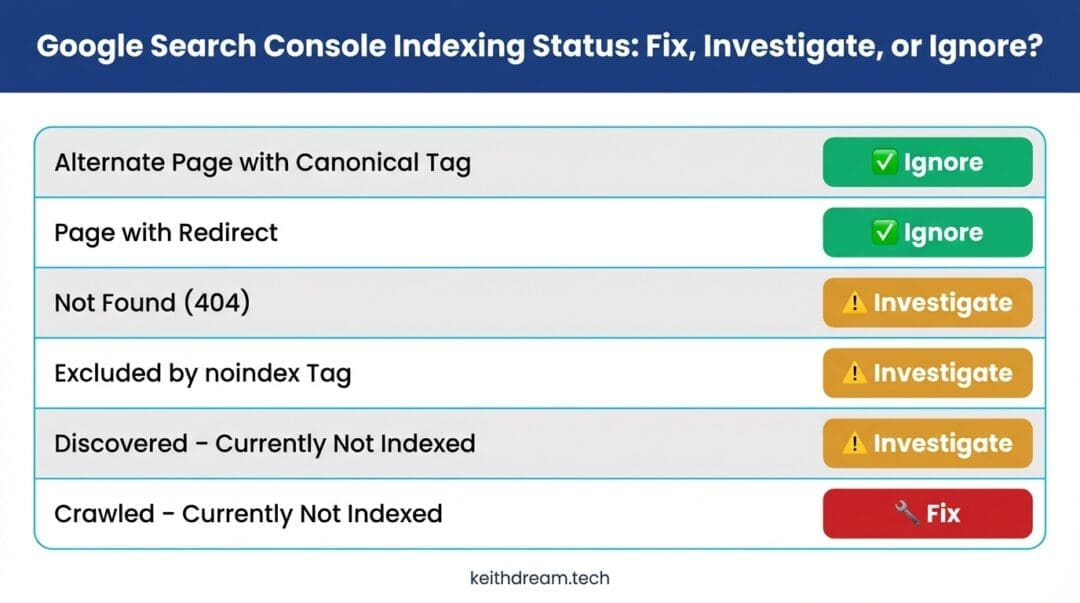
6 Common Google Search Console Indexing Errors and What to Do About Each
Let's break down every status you're likely to see, starting with the most common and least concerning.
1. Alternate Page with Proper Canonical Tag
What it means:
Google found this page but thinks a different, similar page is the "official" version. This happens when you have duplicate or very similar content, and you've told Google which version to prioritize using canonical tags.
Example scenario:
Your site has both yoursite.com/services and yoursite.com/services?ref=email. The content is identical - one just has a tracking parameter. Google sees both but only indexes the clean version because you've set it as canonical.
Should you fix it?
Almost never. This is usually working exactly as designed, especially for:
- Paginated content (page 1, page 2, page 3)
- Product variations (same product in different colors)
- Print-friendly versions of pages
- URLs with tracking parameters
When to investigate:
Only if Google is choosing a canonical page you don't want. Use the URL Inspection tool to see which page Google considers canonical. If it's wrong, update your canonical tags.
2. Page with Redirect
What it means:
The page forwards visitors (and Google) somewhere else. This is intentional behavior you've set up.
Example scenario:
You restructured your site and changed /old-blog-post to /resources/blog-post. You set up a redirect so anyone visiting the old URL automatically lands on the new one.
Should you fix it?
No - but verify it's intentional. Check your redirect settings to make sure:
- Old URLs redirect to the correct new pages
- You're using 301 redirects (permanent) not 302 (temporary)
- Important content isn't accidentally redirecting to your homepage
Red flag to watch for:
If you see pages redirecting that shouldn't be - like your main service pages - investigate immediately. Otherwise, redirects are a good thing.
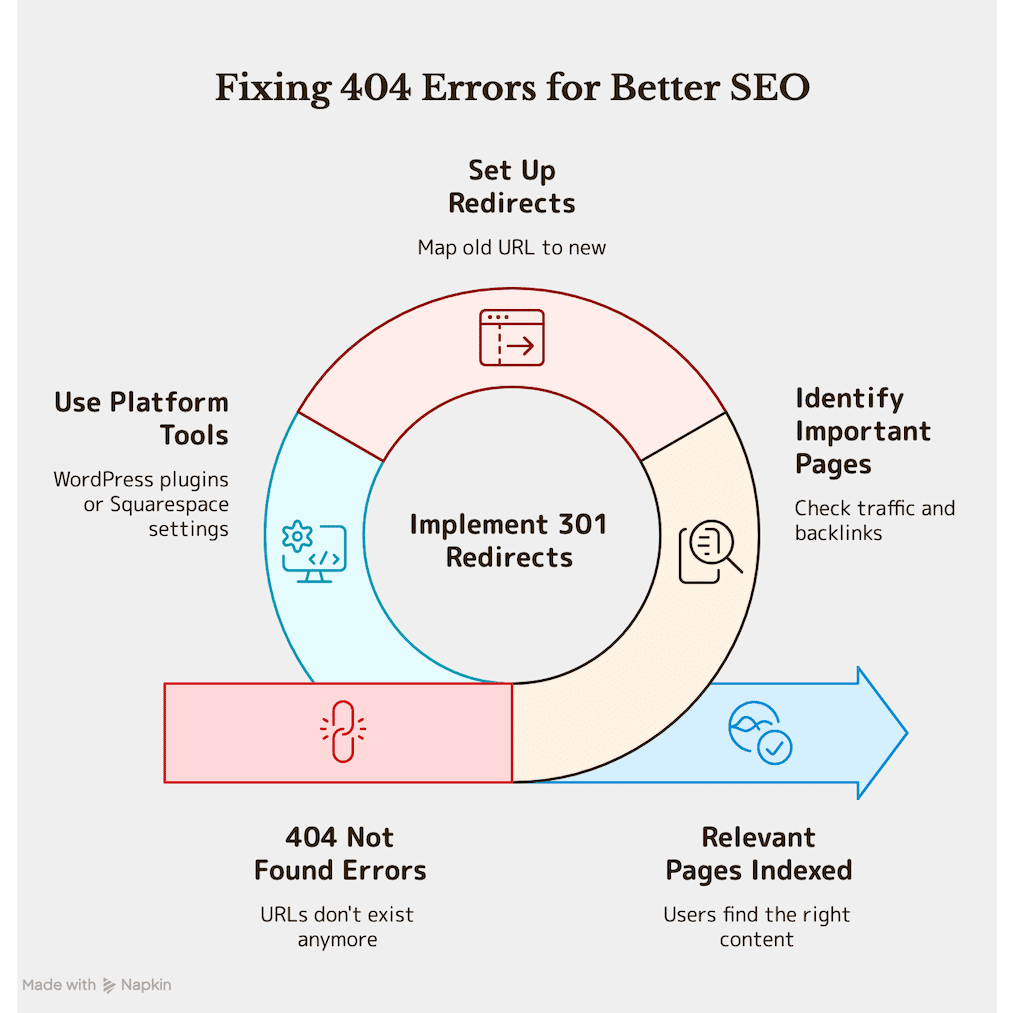
3. Not Found (404)
What it means:
The URL doesn't exist anymore. Someone linked to it or Google found it in your sitemap, but the page is gone.
Example scenario:
You deleted an old blog post, removed a discontinued product, or fixed a typo in a URL. The old URL now returns a 404 error.
Should you fix it?
It depends on the page's importance:
Ignore if:
- It's an old, unimportant page with no traffic history
- You intentionally deleted low-value content
- It's a typo URL that was never real
Fix if:
- The page used to get significant traffic
- Other sites link to it
- It's a recent, important page you didn't mean to delete
How to fix:
Set up a 301 redirect from the old URL to the most relevant existing page.
In WordPress, use a redirect plugin. In Squarespace, use Settings > Advanced > URL Mappings.
4. Excluded by 'noindex' Tag
What it means:
You (or your website platform) explicitly told Google not to index this page. There's a meta tag in the page code that says "don't show this in search results."
Example scenario:
Your thank you page, checkout pages, or draft content has a noindex tag so it stays private.
Should you fix it?
Only if it's unintentional. Check whether the page should appear in search:
Correct to exclude (keep noindex):
- Thank you pages after form submissions
- Shopping cart and checkout pages
- Private or draft content
- Login/account pages
- Search results pages on your own site
Incorrect to exclude (remove noindex):
- Main service or product pages
- Important blog posts
- Landing pages you're actively promoting
- Your homepage
How to fix:
Find your page's SEO settings. In WordPress (SmartCrawl, Yoast, Rank Math), uncheck "discourage search engines." In Squarespace, turn off "Hide from search results."
5. Discovered - Currently Not Indexed
What it means:
Google found the page (usually through links or your sitemap) but hasn't crawled it yet, or crawled it but decided not to add it to the index right now.
Example scenario:
You just published new content last week. Google knows it exists but hasn't prioritized crawling it yet because you're a smaller site or the page seems low-priority.
Should you fix it?
Maybe - depends on the page and how long it's been stuck.
Normal situations (wait and monitor):
- New pages published in the last 2-4 weeks
- Low-value pages Google doesn't see as useful (author archives, tag pages)
- Sites with limited crawl budget
Concerning situations (take action):
- Important pages stuck for over a month
- High-priority content not getting crawled
- Pattern of many pages stuck in this status
How to fix:
- Use the URL Inspection tool in GSC
- Click "Request Indexing"
- Add internal links to the page from other indexed pages
- Verify the page has substantial, unique content
- Check back in 1-2 weeks
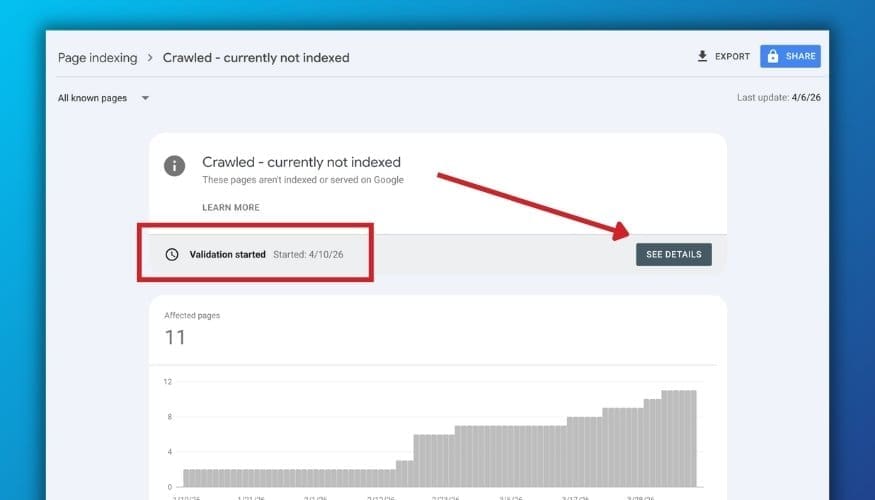
6. Crawled - Currently Not Indexed
What it means:
Google visited the page but decided it's not worth adding to the index. This is more serious than "discovered" because Google actively chose to exclude it.
Why Google might exclude a crawled page:
- Thin or low-quality content
- Duplicate of existing content
- Not mobile-friendly
- Very slow page load time
- Low page authority/few internal links
- Content doesn't match search intent
Should you fix it?
Yes, if it's an important page. This status signals a quality issue.
How to fix:
- Improve content quality - Add depth, examples, unique insights
- Check for duplicates - Ensure content is meaningfully different from other pages
- Boost internal links - Link to the page from related content
- Improve page speed - Compress images, reduce code bloat
- Ensure mobile-friendliness - Test with Google's Mobile-Friendly Test
- After improvements, request indexing again
When to ignore:
If the page truly isn't valuable (old drafts, test pages, archives), it's fine to leave it unindexed or delete it entirely.
💡 Want simple website/SEO tips like this (without the jargon)? Subscribe here
How to Use the URL Inspection Tool to Fix Indexing Issues
The URL Inspection tool is your go-to for search console troubleshooting. Here's how to use it:
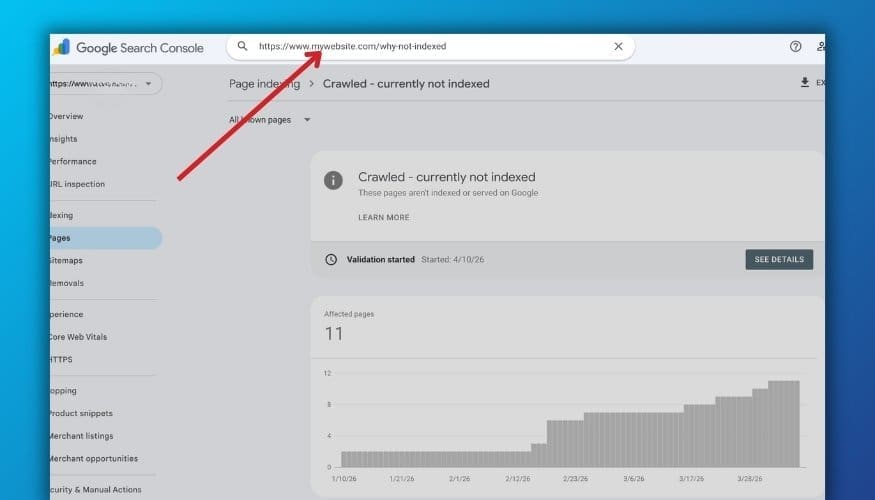
1. Copy the full URL of the page you want to check
2. Paste it into the search bar at the top of Google Search Console
3. Review the status:
Green checkmark = Indexed and showing in search
Gray with info = Not indexed (shows reason why)
4. Click "Request Indexing" if the page should be in Google
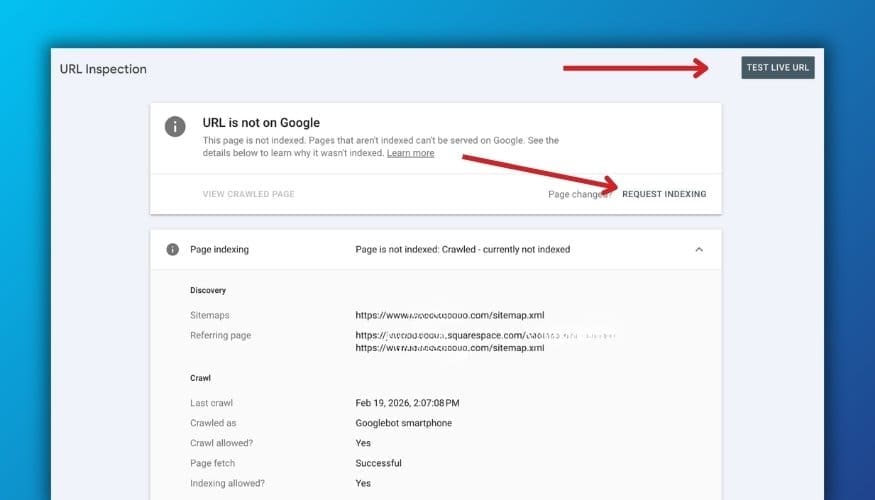
5. Wait 1-2 weeks and check again to see if status changed
Use this tool whenever you publish new content, make major updates, or need to troubleshoot a specific page.
Why Google Search Console "Not Indexed" Pages Are Usually Fine
Here's a scenario that plays out constantly: Someone sees 42 pages "not indexed" and panics. But when we look closer, those 42 pages include:
- 8 tag archive pages
- 6 redirected URLs from a site restructure
- 4 thank you pages
- 3 pages with intentional noindex tags
- 12 pagination pages with proper canonicals
- 5 truly low-value pages
- 4 recent pages still being crawled
Of those 42, maybe 3-4 actually need attention. The rest are working exactly as intended.
A healthy site typically has:
- 60-80% of pages indexed
- 20-40% excluded for valid reasons
- A small handful of pages stuck in "discovered/crawled not indexed" that need attention
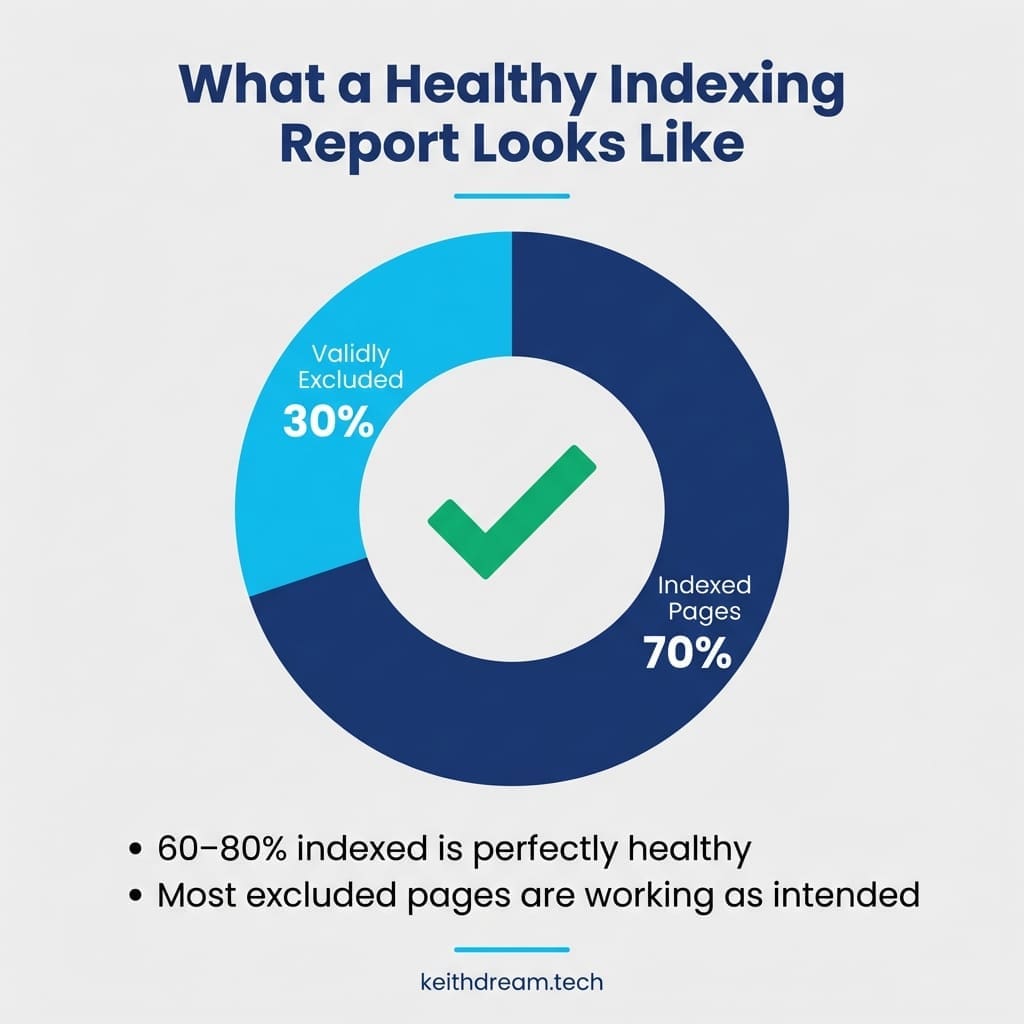
"Of 42 'not indexed' pages, maybe 3-4 actually need attention. The rest are working exactly as intended. Stop chasing 100% indexation."
Stop chasing 100% indexation. Focus on making sure your important pages - services, products, key content - are in Google's index and the rest can be evaluated case by case.
Monthly Google Search Console Troubleshooting Checklist
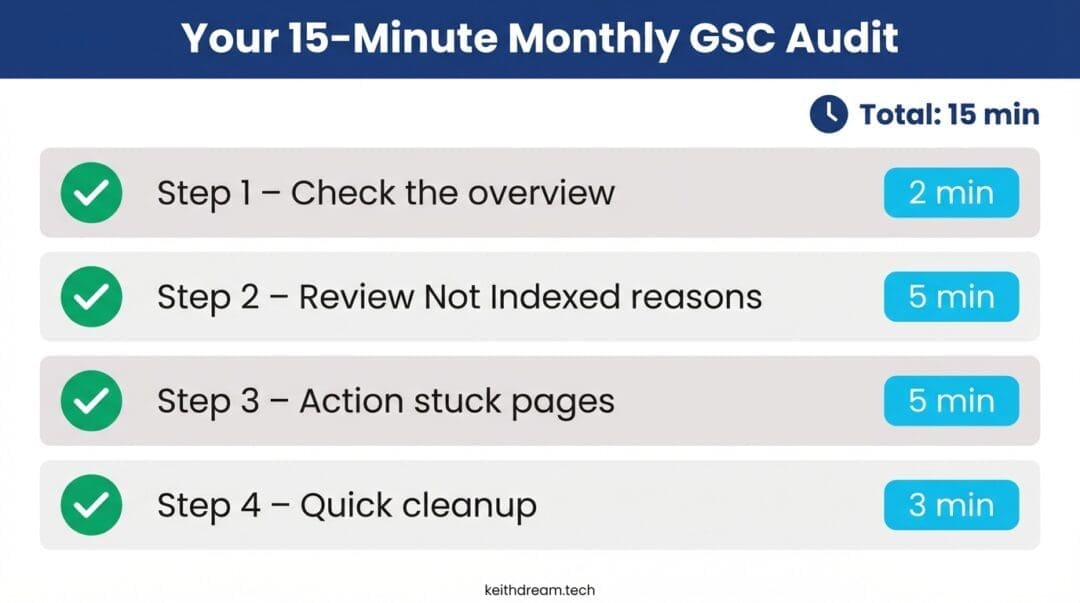
Don't let indexing issues pile up. Here's a simple 15-minute monthly routine:
Step 1: Check the overview (2 minutes)
Open Indexing > Pages. Note the total indexed vs. not indexed. Look for sudden changes - a spike in errors or a drop in indexed pages signals something to investigate.
Step 2: Review "Not indexed" reasons (5 minutes)
Click into each status category. Scan the URLs listed. Ask: "Should this be in Google?"
If you’re on Squarespace: double-check whether the page is intentionally hidden via Squarespace SEO settings ("Hide page from search results" / noindex). If it is, Google is doing exactly what it’s being told.
- Yes? Investigate and fix
- No? Ignore it
Step 3: Priority action on stuck pages (5 minutes)
For any important pages in "Discovered" or "Crawled - not indexed" for over a month:
- Use URL Inspection tool
- Request indexing
- Add internal links to the page
- If you’re working from the Indexing report’s issue buckets, also click Validate fix for that issue after you’ve addressed the URLs in that group
- Note it to check again next month
Step 4: Quick cleanup (3 minutes)
- Remove outdated pages or set up redirects
- Verify recent new pages are getting indexed
- Update noindex settings if you spot mistakes
That's it. Fifteen minutes monthly keeps you ahead of real problems without getting lost in the weeds.
💡 Need help interpreting your indexing report? If you're seeing patterns you don't understand or want strategic guidance on which pages to prioritize, book a strategy call. I'll review your GSC account with you and create a focused action plan. (Clients get reduced rates! Check out our WordPress support plans here.)
How to Verify Your Google Indexing Fixes Worked
After you've requested indexing or made changes, here's how to validate your fixes:
Within 1-2 weeks:
- Return to Indexing > Pages in GSC
- Check if your totals changed (more green, less gray)
- Use URL Inspection on specific fixed pages to confirm they're now indexed
Within 1 month:
- Review Performance data to see if fixed pages are getting impressions
- Check if previously stuck pages moved from "discovered" to "indexed"
- Verify 404s you redirected no longer appear in the report
Red flags that fixes didn't work:
- Page still shows same error after 2+ weeks
- Requested indexing multiple times with no change
- New pages immediately go to "crawled not indexed"
If fixes aren't working, the issue may be deeper - site-wide settings, robots.txt blocks, or quality concerns that need addressing.
When Google Search Console Errors Are Actually an Emergency
Real indexing emergencies are rare, but here's when to drop everything and investigate:
Panic situations (don't panic, prioritize):
- Your homepage suddenly isn't indexed
- Half your site disappeared from the index overnight
- Major product/service pages are suddenly excluded
- You see a "Manual Action" notice in GSC
Annoying but not emergency:
- A few pages stuck in "discovered - not indexed"
- Some old redirected URLs showing as 404s
- Pagination or tag pages excluded
If you see a genuine emergency, check these immediately:
- Accidental site-wide noindex - Check your WordPress settings or SEO plugin options
- Broken sitemap - Verify yoursite.com/sitemap.xml still loads
- Robots.txt blocking Google - Check yoursite.com/robots.txt for "
Disallow: /" - Site downtime - Verify your site loads in an incognito browser
- SSL certificate expired - Check for HTTPS errors
Most "emergencies" are configuration mistakes that are easily reversed. If you've ruled out the above and pages are still disappearing, contact your host or developer immediately.
💡 Related reading: If you’re new to Search Console, start with the our Essential Guide to Google Search Console here.
"Real indexing emergencies are rare. If your site is performing well in search and converting visitors, your indexing is probably fine - even if GSC makes it look like a disaster zone."
Focus on the Right Pages — Not 100% Google Indexation
Google Search Console indexing reports look scary because they present neutral information as if it's all problems. Excluded pages, not indexed pages, errors - the language makes everything sound critical.
The reality is simpler: Make sure your important pages are indexed, investigate anything genuinely stuck, and ignore the rest.
You don't need every page indexed. You need the right pages indexed. And now you know exactly how to tell the difference.
Ready to take action?
- Review your indexing report using this guide as a reference
- Identify 3-5 truly important pages that aren't indexed
- Use URL Inspection to request indexing
- Set a monthly calendar reminder to audit indexing status
Want to see the bigger picture? Once you've got indexing under control, learn how to use your GSC Performance data to find quick SEO wins and turn search visibility into actual traffic. Get on our newsletter to learn when it comes out.
And remember: If your site is performing well in search, getting traffic, and converting visitors, your indexing is probably fine - even if GSC makes it look like a disaster zone.
Frequently Asked Questions About Google Search Console Indexing Errors
What does "discovered - currently not indexed" mean in Google Search Console?
This means Google found your page (through links or your sitemap) but hasn't crawled it yet or decided not to add it to the index right now. For new pages, this is normal and usually resolves within 2-4 weeks. If important pages stay stuck for over a month, use the URL Inspection tool to request indexing and add internal links to help Google prioritize it.
How do I fix "page with redirect" errors in Google Search Console?
You don't need to fix redirects - they're working as intended. Redirects forward old URLs to new ones, which is exactly what you want. Just verify that redirects go to the correct pages and use 301 (permanent) redirects rather than 302 (temporary). Only investigate if pages that shouldn't redirect are showing this status.
Why are so many of my pages not indexed in Google Search Console?
Not all pages should be indexed. A typical site with 50 pages might only need 30-35 in Google's index. Thank you pages, checkout flows, pagination, and redirected URLs don't belong in search results. Focus on whether your important pages (services, products, key content) are indexed. If they are, the "not indexed" pages are likely working correctly.
How long does it take for Google to index a page after I request indexing?
After requesting indexing through the URL Inspection tool, Google typically indexes the page within 1-2 weeks, though it can take up to a month. Check back after two weeks using URL Inspection. If the page still isn't indexed, check for quality issues, add more internal links, or ensure the content is substantial and unique.
What's the difference between "discovered" and "crawled" not indexed status?
"Discovered - not indexed" means Google found the page but hasn't visited it yet. "Crawled - not indexed" means Google visited the page but chose not to add it to the index, usually due to quality concerns like thin content, duplicates, or technical issues. Crawled not indexed is more serious and signals you need to improve the page before requesting indexing again.
Can I ignore 404 errors in Google Search Console?
Yes, in most cases. If the 404s are for old, unimportant pages you intentionally deleted, ignore them. Only fix 404s if the missing page used to get significant traffic or if other sites link to it. In those cases, set up a 301 redirect from the old URL to the most relevant existing page on your site.





0 Comments